
Before you begin, it is recommended that you review and configure the Mobile Download Behavior setting. This option, located under Database Admin > Database Options, determines how completed Work Orders are handled when they are downloaded from Antero Mobile. The steps below will guide you through updating this setting to ensure Work Orders are routed as expected.
First you want to be signed into a user that has DB Admin Privileges set in User Security.
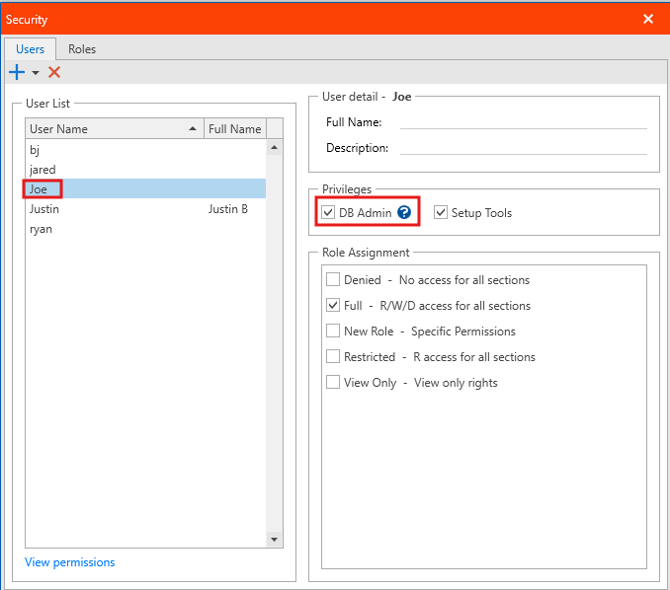
Once you are signed into a user that has DB Admin Privileges you can navigate to Database Admin in the File Menu, followed by Database Options.
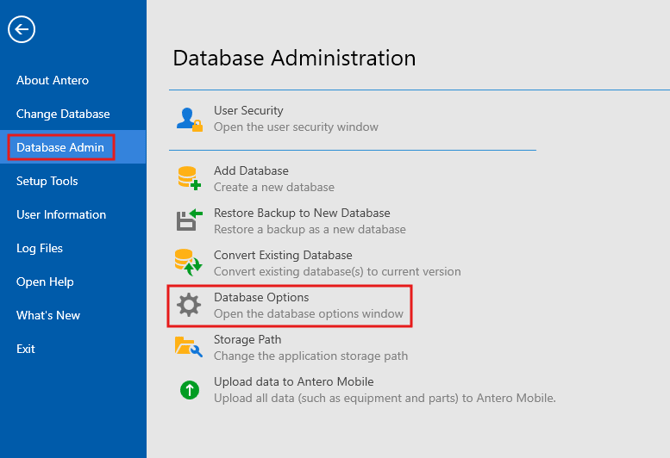
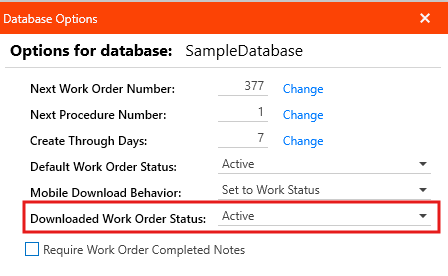
Inside Database Options you can select where you want the completed and downloaded Work Orders from Antero Mobile to go from the drop down menu next to Mobile Download Behavior. You can choose between the following three options:
-
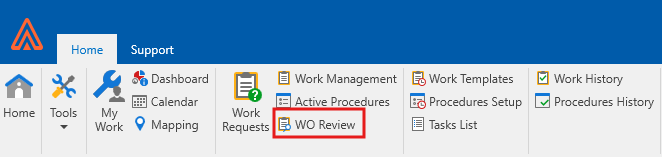
Move to Review - Once a work order is completed and downloaded from Antero Mobile it will be placed in the Work Order Review Tab.
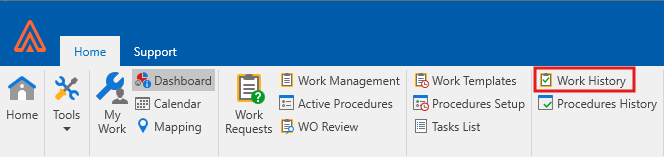
- Move to History - Once a work order is completed and downloaded from Antero Mobile it will be placed in the Work History Tab.
- Set To Work Status - Once a work order is completed and downloaded from Antero Mobile it will be placed in Work Management under a Work Status you specify. If you select this options a new drop down option will appear called Downloaded Work Order Status. This is where you will choose the Work Status that will be set on completed and downloaded work orders.
Uploading Work Orders
Begin by navigating to the Work Management tab. From there, select the Work Orders you want to sync with Antero Mobile by checking the corresponding boxes next to each Work Order. These selected items will then be prepared for upload to the cloud.
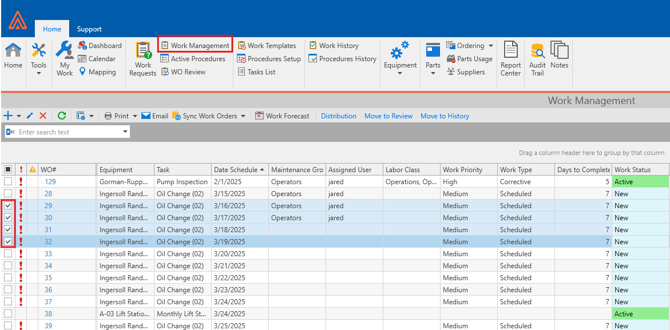
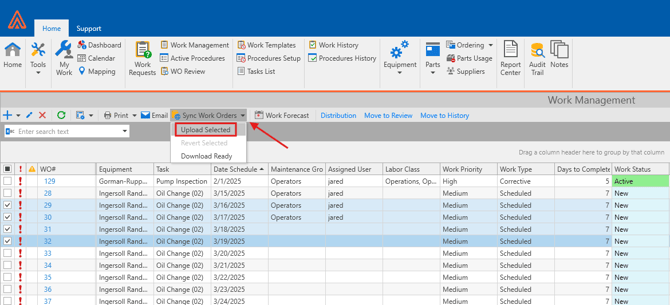
After you made your selection you want to click on Sync Work Orders and select the Upload Selected Option from the drop down.
The following window will pop up:
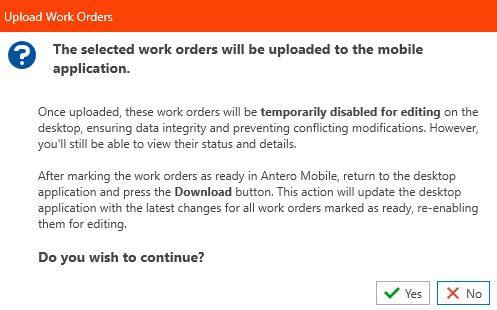
Select Yes after reading the prompt if you are ready to Sync.
Select No if you still need to make Modifications to the Work Order prior to sending it to the cloud.
After you click Yes the Work Status for those work orders will switch to a "Synced" Status and you can login to Antero Mobile with your User Credentials.
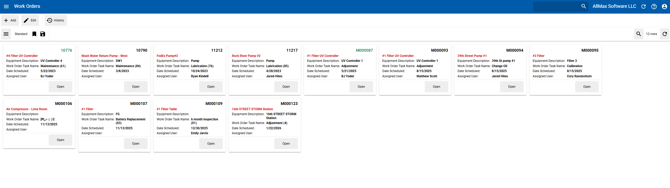
Once logged in you will see all the Work Orders you chose to Upload.
Downloading Work Orders
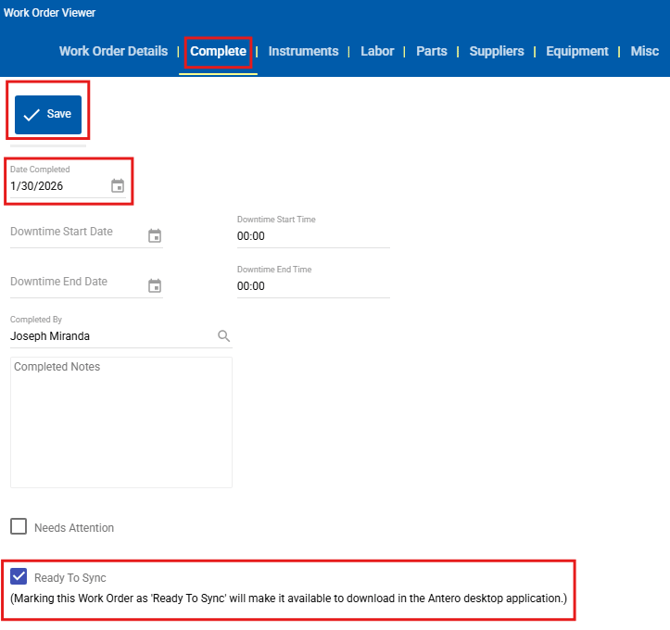
When you are ready to Complete a work order make sure you Select a Date Completed, click the Ready To Sync Tick Box, and click Save.
Now head back into the Antero Client Application and go back to the Work Management Tab.
Once again click on Sync Work Orders, but this time select the Download Ready option.
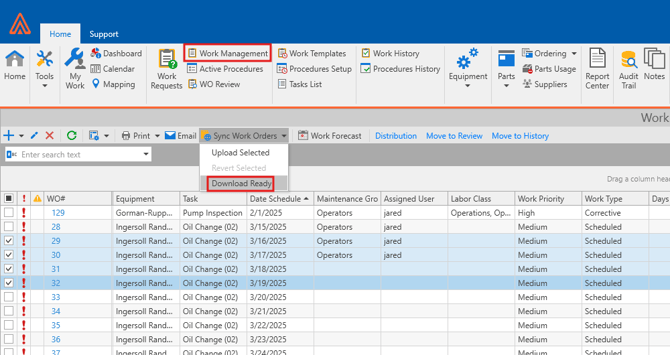
Work Orders completed in Antero Mobile and marked as Ready to Sync will be downloaded into the client application location specified by the Mobile Download Behavior setting configured earlier in this Knowledge Base article.