
Before you begin
There are some key pieces of information and set-up that will need to occur before migration.
Current Antero Version Number
Application Information can be found within the app by pressing file or the Antero Icon as shown below
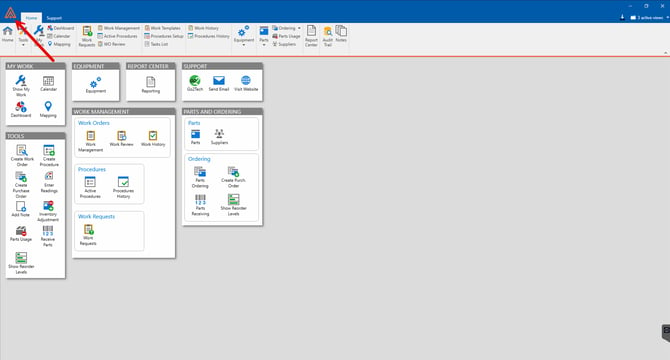
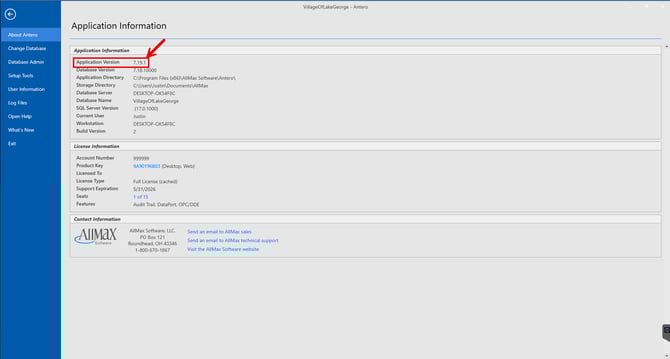
Or by accessing you installed applications within windows. The version number will need to match across all client computers, keep this in mind prior to deployment.
For the most current version of Antero Click Here
For Previous versions Click Here.
Note: The installed version on the server may not be the most recent, so it is best practice to check a known working version of Antero.
File Migration
In the "Application Information" page which can be accessed by pressing file or the Antero Icon you will see a "Storage Directory", This will likely be a shared network drive.
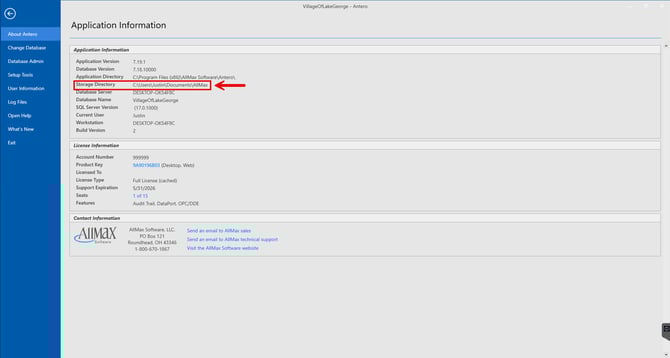
If you plan on decommissioning the file path located you will need to copy the contents (the whole directory) and create a new share location. Any person(s) using Antero will need Read/Write access to this share location. This directory houses all of the shared data within Antero. This includes images, documents, and reports users add to work orders and equipment within the application.
Back-up/Migration
There are several ways to migrate your database and data.
Within the application
Press Support, then Backup as shown in the picture below.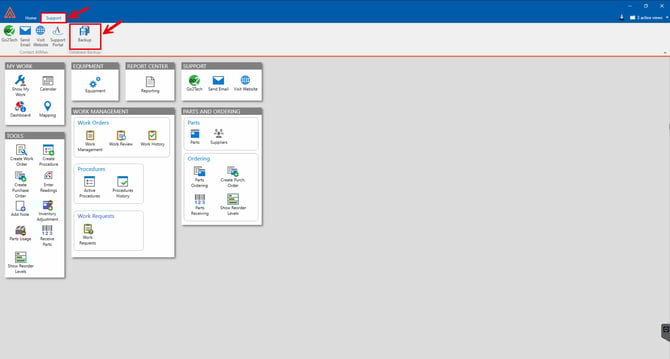 This will then display the following box which will allow you to pick which data you would like to backup.
Note: If you want to do a full backup and restore, please make sure you select all of the boxes, and leave the date range blank as shown in the picture below.
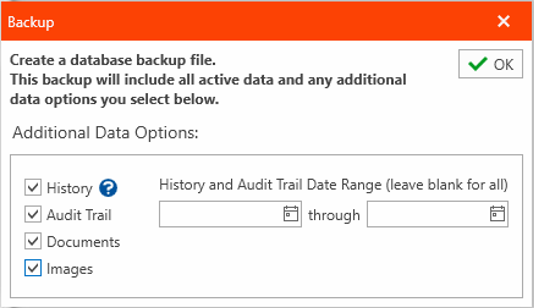
After the Backup is finished, you will receive a filepath location where the backup will be stored as shown below.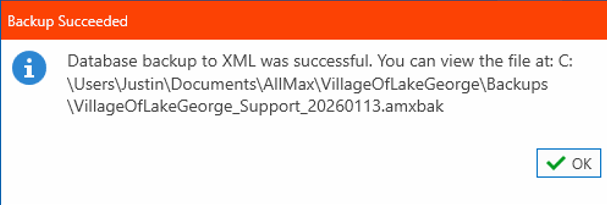
Direct SQL File Migration
You can also directly transfer SQL files instead of using the backup and restore feature within the application.
You will need to suspend the SQL Service before copying data, as Windows prevents copying data while the service is running.
You can do this by opening Services on your Windows system, and right clicking, selecting either Stop or Pause, as shown below.
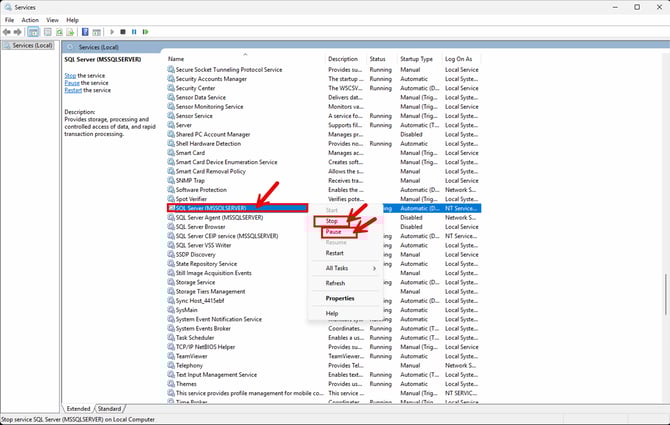
Once the service has been stopped, you will need to copy the .log and .mdf files, for both the Antero License Database, and Antero Database itself.
This can typically be found here
C:\Program Files\Microsoft SQL Server\YourSQLVersionNumber\MSSQL\DATA
Once the filepath has been located you can copy the proper .log and .mdf files like the example below.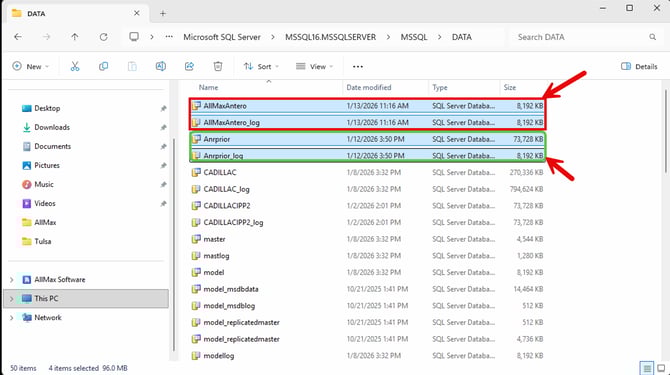
Note: The contents in the "Red Box" are the files for the Antero License Database, and the contents in the "Green Box" are the Antero Database itself. If you have more than one Antero Database, you will need to copy the .log and .mdf for each Antero Database.
Installing SQL
You will need to install SQL and SQL Management Studio on the new computer.
Our KB Article Installing and Configuring Microsoft SQL Server 2022 Express will explain the proper SQL configuration to proceed. After installing and configuring SQL Server Express, You will need to download SQL Management Studio which can be found here. The default settings for SQL Management Studio are perfect for our use case.
Restoring Data
If you are using the application itself to migrate data you can use this knowledge base article.
If you are manually migrating data, after installing SQL and SMSS, you will need to do the following.
Create a network share. Any person(s) using Antero will need Read/Write access to this share location.
Place the data from the previous share file here. We will need to point Antero to this new location after restoration which I will cover later.
Copy the .mdf and .log files into the DATA folder typically found C:\Program Files\Microsoft SQL Server\YourSQLVersionNumber\MSSQL\DATA and "Attach" the databases using SMSS as explained below.
Open SMSS and connect to your local SQL Server Instance.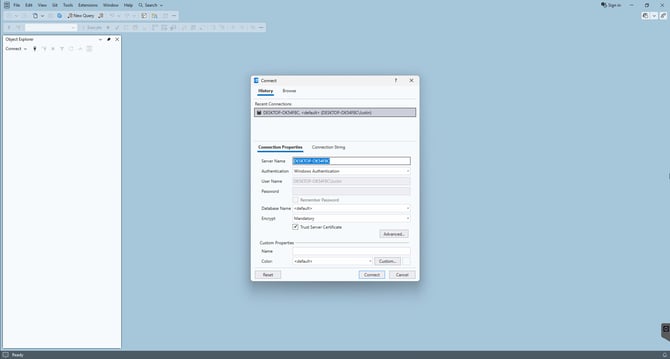
Press "Connect" (you may need to check the box "Trust Server Certificate" to allow this connection to pass.)
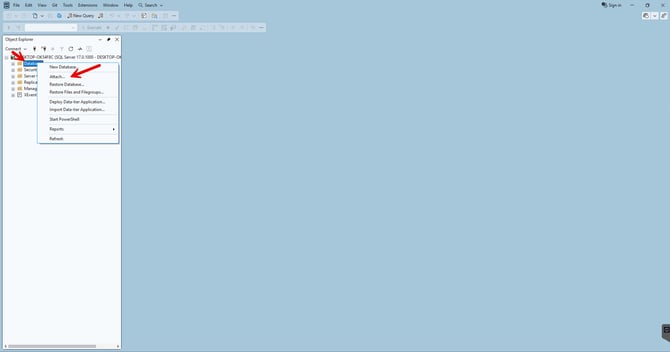
Right click "Databases" and press "Attach"
Press "Add"
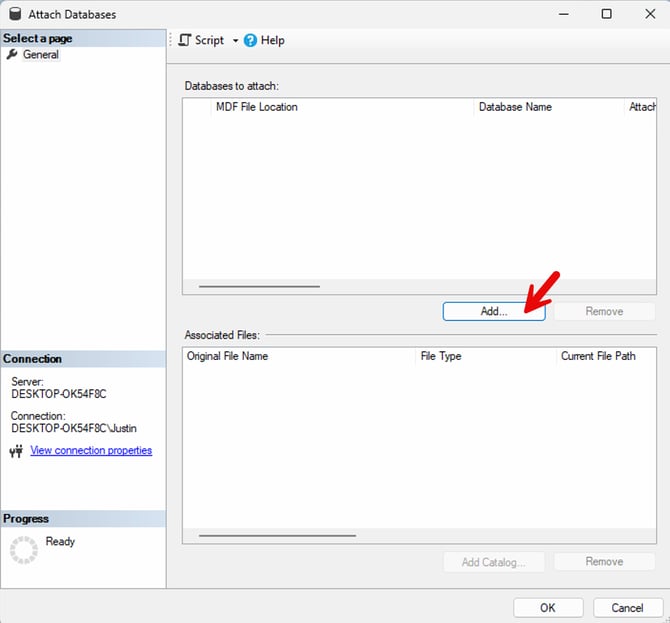
Note: The .mdf and .log files will only show here if you copied them into the correct directory, otherwise you will need to locate and point to them on the computer. I STRONGLY recommended placing the files in the DATA folder, as this may cause issues later if not done properly.
Press "OK".
Install and Launch Antero.
A Knowledgebase article can be found here if help installing Antero is required.
After installing Antero, You will get a server select window. type "localhost" as shown below.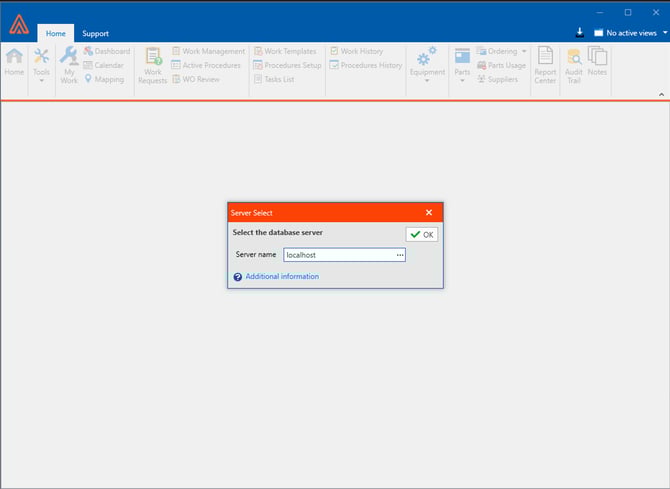
Press "OK"
It may take a moment for the program to load a list of the databases at this point.
You should then see a list of your databases as shown below.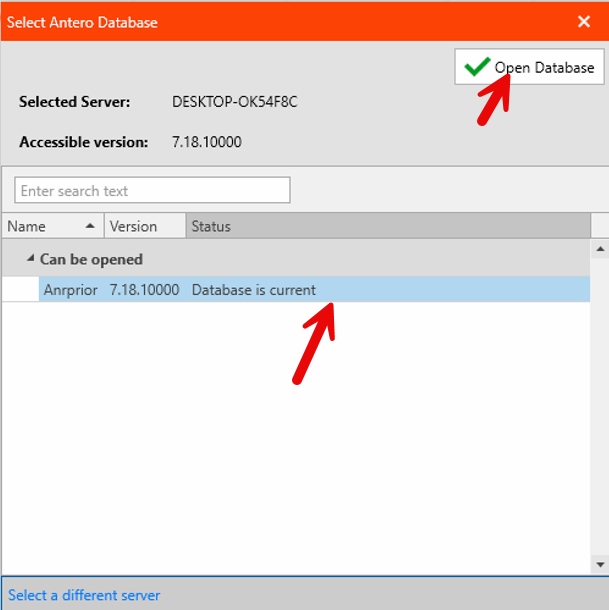
Highlight the desired Database, and Press Open Database as shown above.
Ensure your data is present by going through the Equipment and Work History within Antero.
Changing The Storagepath
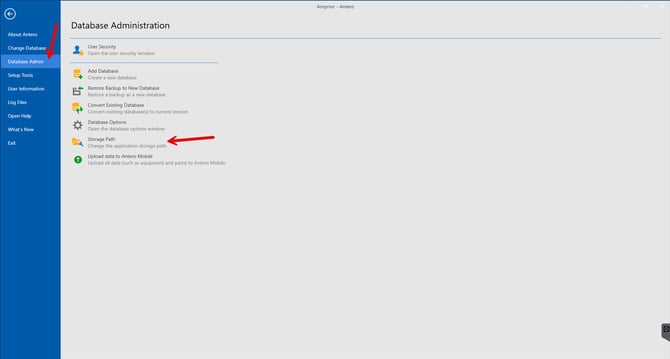
Press "File" or the Antero Icon
Press "Database Admin" then "Storage Path"
Use the three dot button, or copy and paste the new share location into the box as shown below.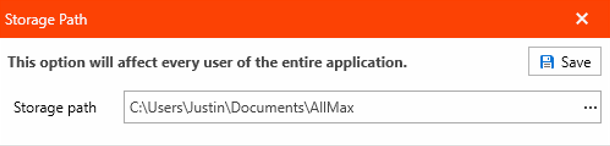
Note: You will need to match the file structure, and have access to both the old and new share location in order to change this storage path location.