
What it is
The Antero Service runs as a background process in Windows. It checks the database to automatically generate new work orders when the trigger conditions of associated work templates are met.
How to Install/Update
You will need to run Setup_AnteroService which will be located in the installation directory for Antero. This will typically be C:\Program Files (x86)\AllMax Software\Antero
If you have updated Antero, you will likely need to update the Antero Service, it is good practice to run this installer after any Antero update. The steps are the same for both installing, and updating.
After clicking the application (Setup_AnteroService) you will see the following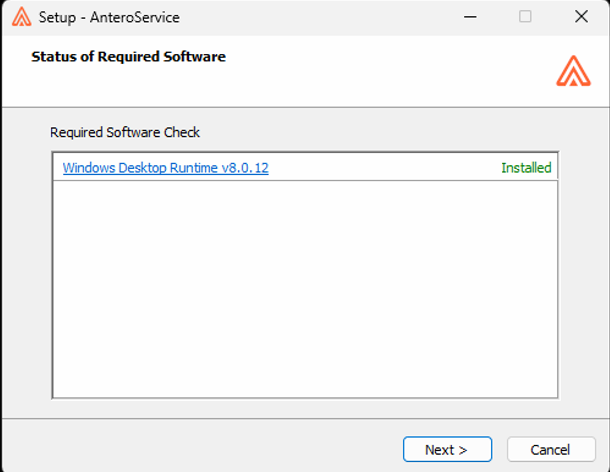
If Windows Desktop Runtime v8 or newer is not on the machine, you will be prompted to install that first. (This is packaged with the software and will automatically trigger if not previously installed)
Follow the installation prompts to complete the process by pressing next, accepting the EULA and pressing next again. You will then be asked to select an installation location. (in most cases you can leave this as it is by default)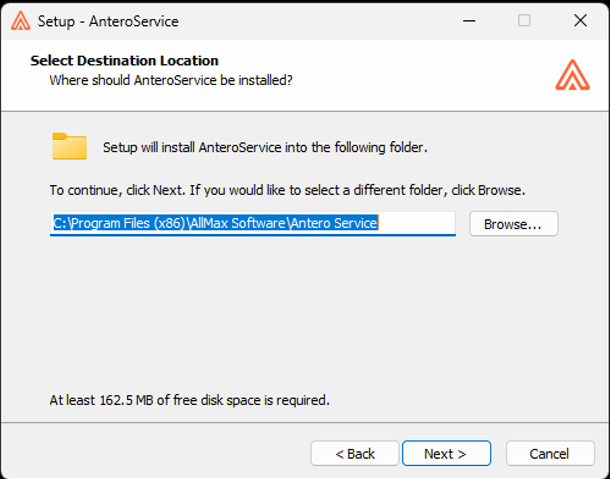
Press "Install" and let the installer finish running.
NOTE: You will need to check "Launch Antero Service Configuration to complete this process. This is a very important step.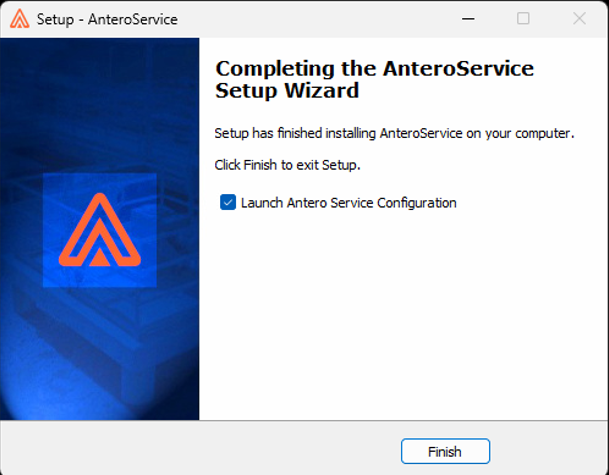
How to Configure
When the Antero Service Settings window appears there are 2 configuration methods.
1.Installed and configured on the Database Server.
Database server name should be set to "localhost"
Work order Interval and Procedure Interval will be set to 60 (Minutes) by default.
Changing this will effect how often the service will check for new work orders.
It is recommended to leave this above 10 depending on the amount of work templates you have.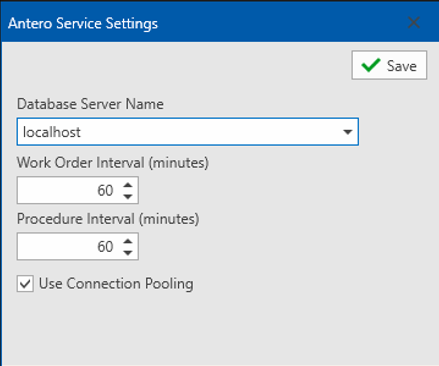
2.Installed and configured on a Client Machine
Select the server or type the name of the server using the box or dropdown list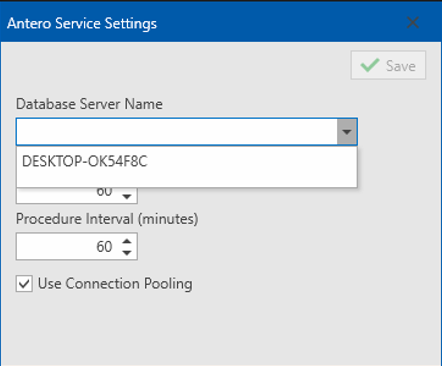
Work order Interval and Procedure Interval will be set to 60 (Minutes) by default.
Changing this will effect how often the service will check for new work orders.
It is recommended to leave this above 10 depending on the amount of work templates you have.
If the service is installed on a client machine you will need to ensure that it has the proper permissions to access SQL Server.
Launch Services, Find "Antero Service"
Right click and press "Properties"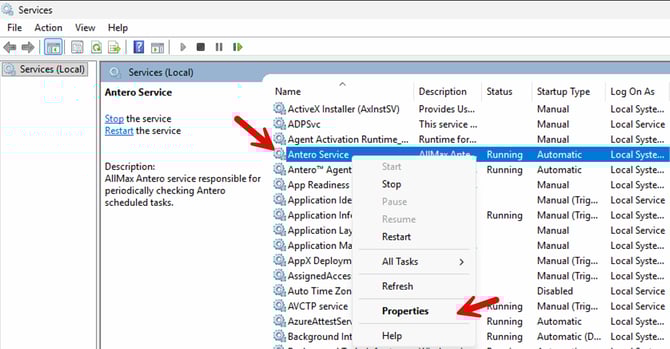
Press "Log On"
Press "This Account"
Press "Browse"
Select a user with proper permissions.
Type in the password, and confirm the password
Press "OK"
Note: The password will not be visible to the user.
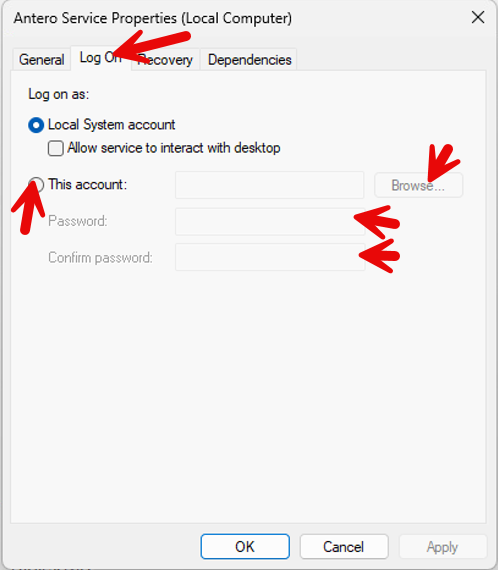
The service log on context needs read/write access to the AllMaxAntero database and any Antero data databases (user defined names).