
Much of the information associated with Equipment can be classified as list-based information. List-based information allows users to classify and categorize information as well as promoting reusability in the data stored as list-based information. List-based information is typically stored with relatively little supporting information and is predominantly a single piece of information.
List Type Definitions
These lists can be added directly in the Equipment Detail, or from the Equipment lists located on the Equipment drop-down at the menu. Here are the definitions of each lists:
• Category: Allows users to associate Equipment with a defined Category. The Category field is a single piece of data that can be used to describe the piece of equipment. Categories can be used to group pieces of equipment together as the smaller pieces may form a larger piece of equipment, process, or production line.
• Condition: Allows users to associate Equipment with a defined Condition. The Condition field is a single piece of data that can be used to describe the piece of equipment. Condition can be used to describe the overall condition of the piece of equipment for informational and the asset management process.
• Department: Represents a treatment plant, public works department, industry, business, or entity where data can be collected and related based on geographic location or business segment relation. Multiple Departments are able to be created in a databases Equipment section and are capable of sharing data reducing the amount of data entry required to populate the Antero database.
• Group: Allows users to associate Equipment with a defined Group. The Group field is a single piece of data that can be used to describe the piece of equipment. Groups can be used to tie pieces of equipment together as the smaller pieces may form a larger piece of equipment, process, or production line.
• Locations: Can be created and associated with equipment data in Antero. The Location field allows for a primary Location to be defined as well as an optional Sub-location. The combination of Location and Sub-location data can provide detailed identification information to help locate and provide location resources to the user.
• Equipment Priority: Allows users to customize the defined priorities of Equipment and to better classify/categorize the order in which work is to be performed. Unlimited Equipment Priorities can be defined. Utilizing custom Equipment Priorities can lead to more concise reports as this field can be used for sorting and filtering when reports are prepared.
• Equipment Type: Allows users to associate Equipment and Parts with a defined Equipment Type. The Equipment Type field is a single piece of data that can be used to describe the piece of equipment and examples are: pumps, motors, valves, trucks, tools, etc.
*Continue to the sections below to learn how to add, edit, and delete equipment list types.
Adding Equipment List Types
To add a new list entry for all of the Equipment List Types , follow the steps below:
1. In Antero, go to the Home ribbon and click the Equipment down-arrow.
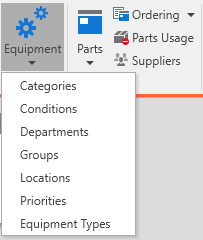
2. In the Lists menu, click the desired list type (Category, Condition, etc.).
3. The selected Lists window will open in front of Antero.
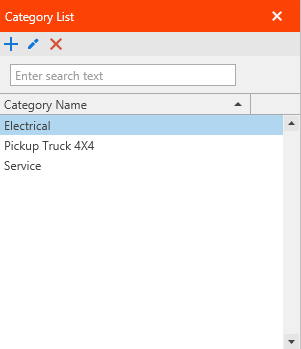
4. To add a new Equipment List Type, click the  [add].
5. The Add window will open in front of the List window.
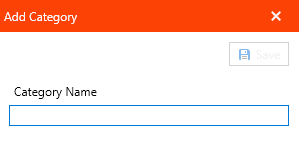
6. Type the name of the new List Type on the line below the Name title.
7. Once the new List Types name has been entered, click the  button and it should now show up in the List.
Editing Equipment List Types
To edit an existing Equipment List Type, follow the steps below:
1. In Antero, go to the Home ribbon and click the Equipment down-arrow.
2. In the Lists menu, click the desired list type (Category, Condition, etc.).
3. The Lists window will open in front of Antero.
4. Select an existing List Name and then click the  [edit].
5. The Edit window will open in front of the Equipment List Type window.
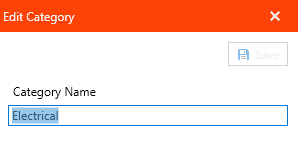
6. Change the List Types name to something unique and then click the button.
7. The newly edited List Type will now show in the List.
Deleting Equipment List Types
For List Types that are no longer required or necessary to be maintained, it is possible to delete the data for the selected category.
To delete a list type for all of the Equipment List Types , follow the steps below:
1. In Antero, go to the Home ribbon and click the Equipment down-arrow.
2. In the Lists menu, click the desired list type (Category, Condition, etc.).
3. The Lists window will open in front of Antero.
4. With the record selected, press the  [Delete] to delete the selected category.
5. A confirmation prompt will appear, click the green Yes or red No button to confirm the deletion of the selected List Type.
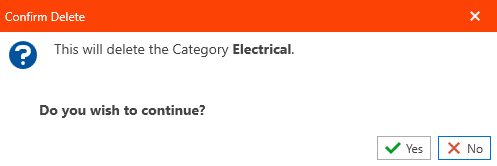
6. The newly deleted List Type will no longer be accessible from inside of Antero.