
Navigating to Report List to Create a DMR
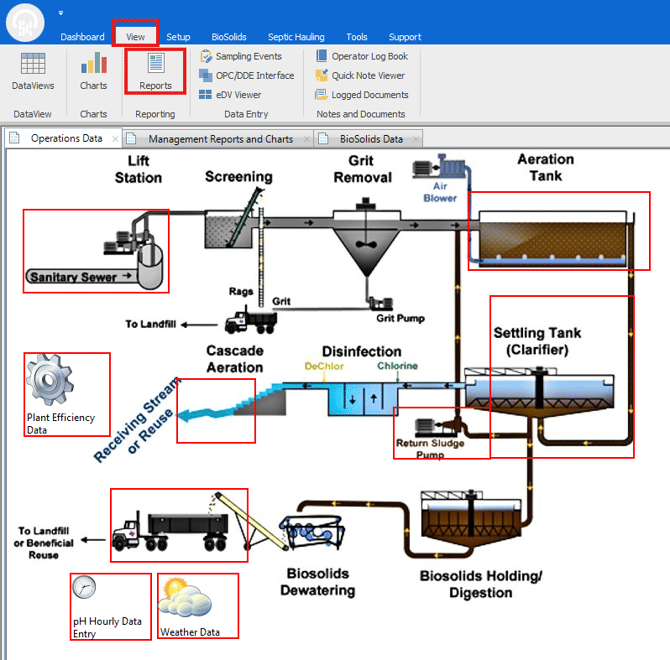
Firstly, Open Operator 10 and navigate to the Reporting section by clicking on View then Reports at the top of the application:
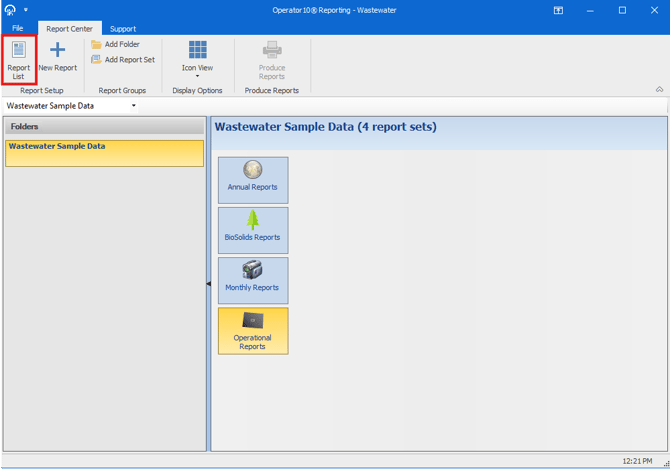
The reporting window will pop up, at this time you will click on the report list in the top left of the application:
Creating the DMR Report and Adding LPs
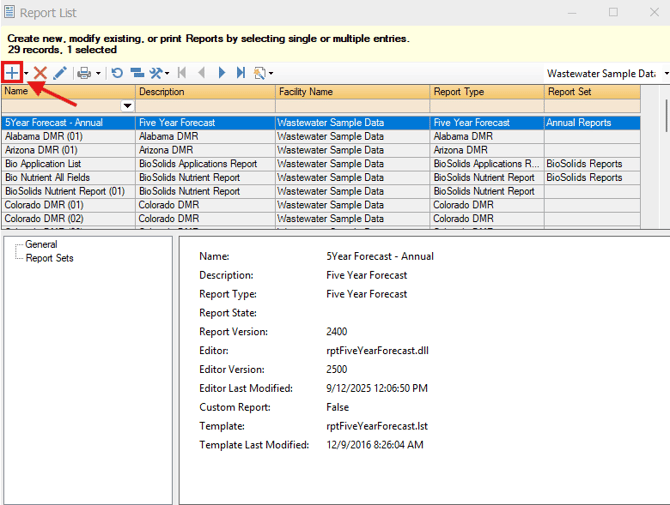
At this time, you will have the Report List open. To add a new DMR report you will start by clicking on the + Icon in the top left:
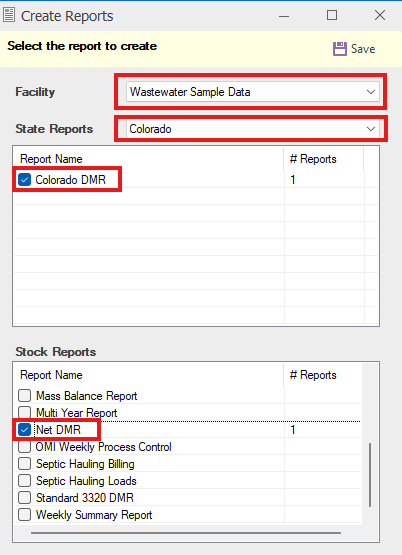
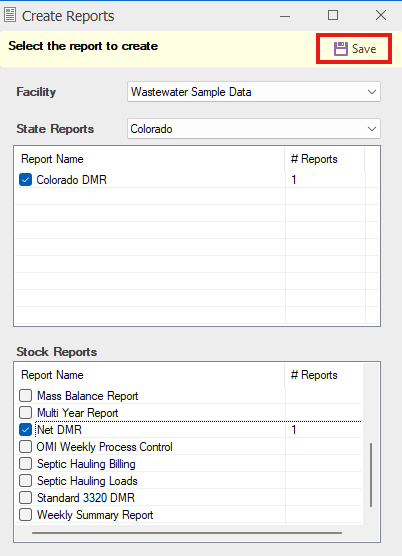
The Create Report window will open. In this window, you will:
-
Select your Facility from the drop-down menu.
-
Select your State from the State Reports drop-down menu.
-
Select your state’s DMR Report name. This is typically available by default; however, if it does not appear, you can add the state’s DMR report name to the Report List so it becomes selectable.
-
Finally, select the Stock report titled "Net DMR".
Click Save, to Create the Report with your selected options:
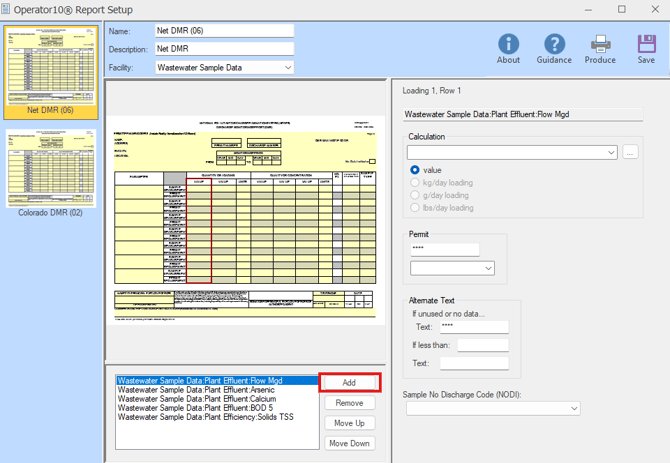
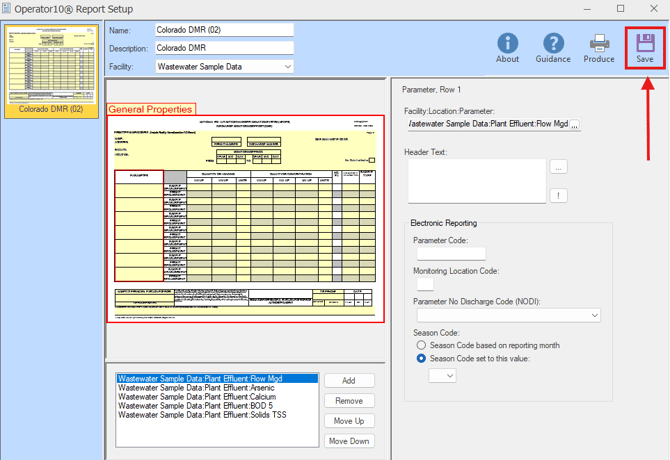
Lastly, the Report Setup window will open. Here you can add the Location Parameters you need on the DMR by clicking on Add and selecting them from a list:
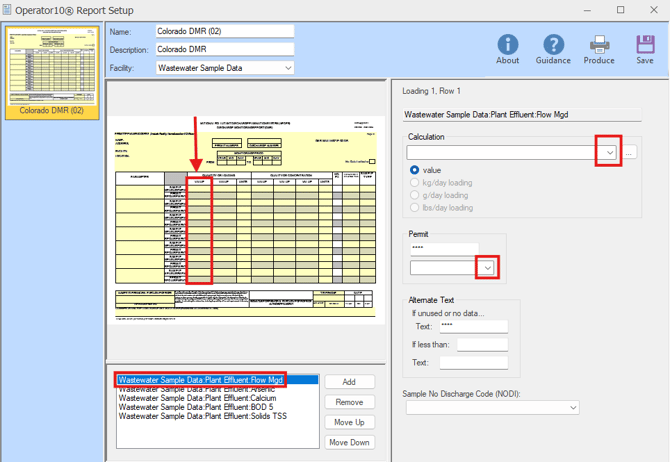
Setting Calculations and Limits
Each parameter appears as its own row in the report.
To begin, select a parameter by clicking on it in the list below.
Next, click on the column you want to edit in the report preview.
After selecting a column, you can optionally apply a calculation by choosing an option from the Calculation drop-down menu.
If needed, you can also apply a limit by selecting an option from the Permit drop-down menu.
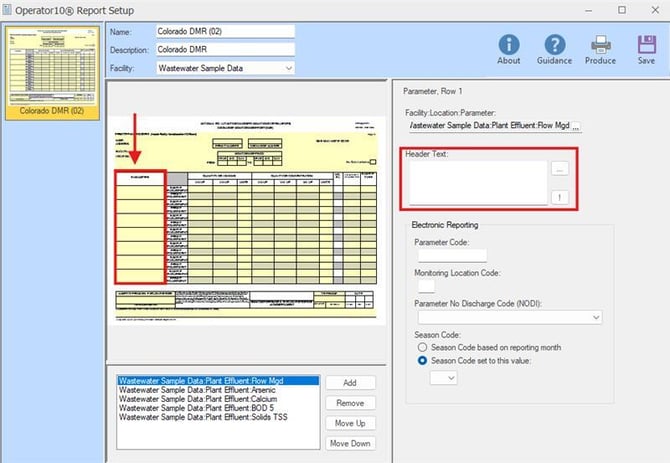
Tip: To change the header for a parameter row, click the column on the far left, then enter your desired label in the Header Text field.
Remember to Click Save to Save all of your changes!
Add DMR Report to a Report Set
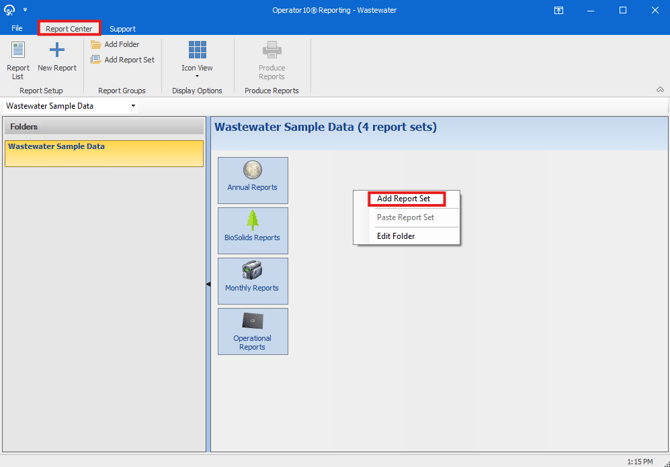
After saving your changes, return to the Report Center. In the area next to the existing report sets, right-click and select "Add Report Set":
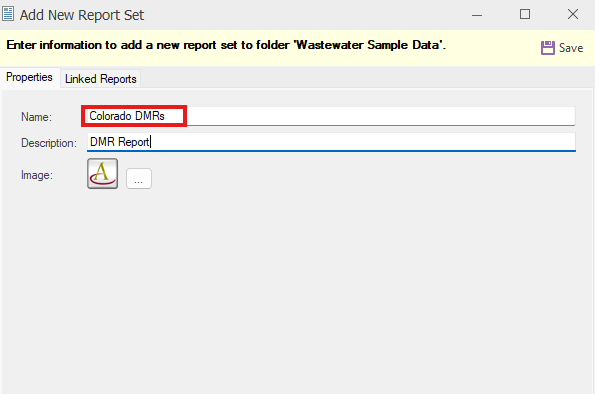
Next, Choose a name for your Report Set by typing it into the Name Section.
Optionally, you can set a Description and Image below the Name:
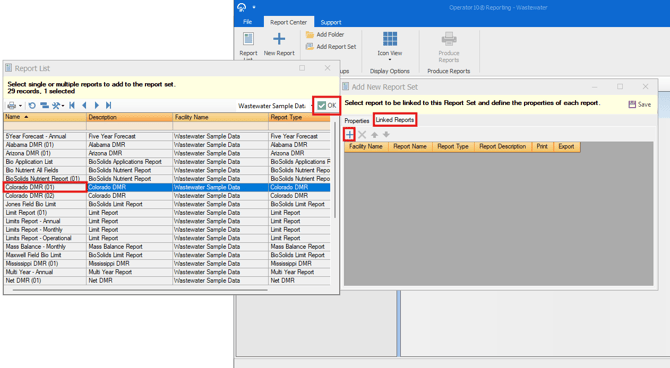
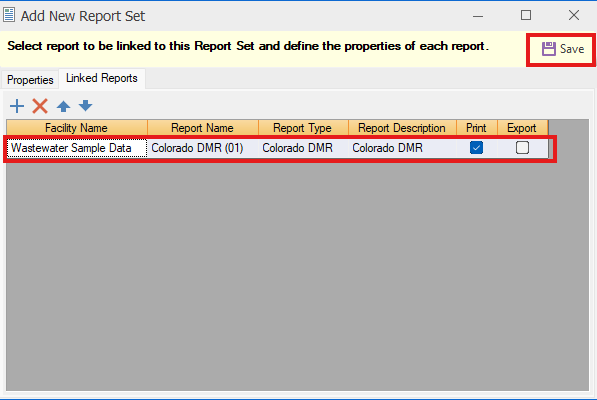
Select the Linked Reports tab next to Properties, Click the + icon to add the DMR Report we just created, Select that DMR report from the list, and click OK:
Your DMR report will now show in the list of reports in that Report Set. Click Save to Save your changes:
Creating a Hotspot for your New Report Set
Now that you created a Report set you can add that Report Set as a Hotspot to your Dashboard to streamline the process for Printing/Exporting.
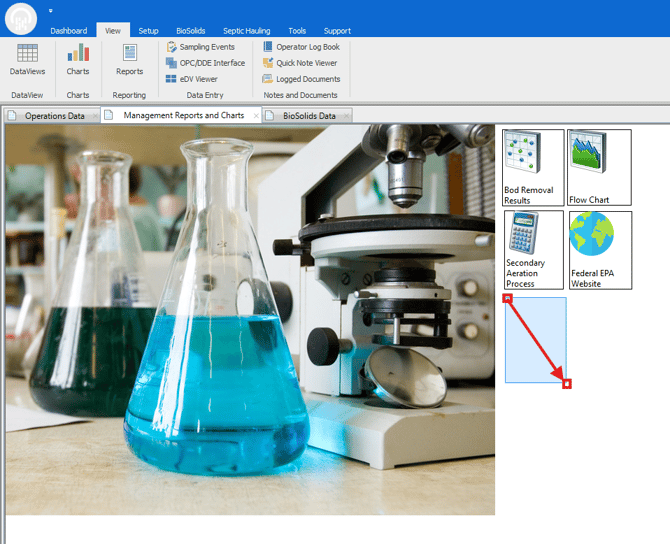
From your Dashboard, click and drag to highlight the area where you want to create the hotspot.
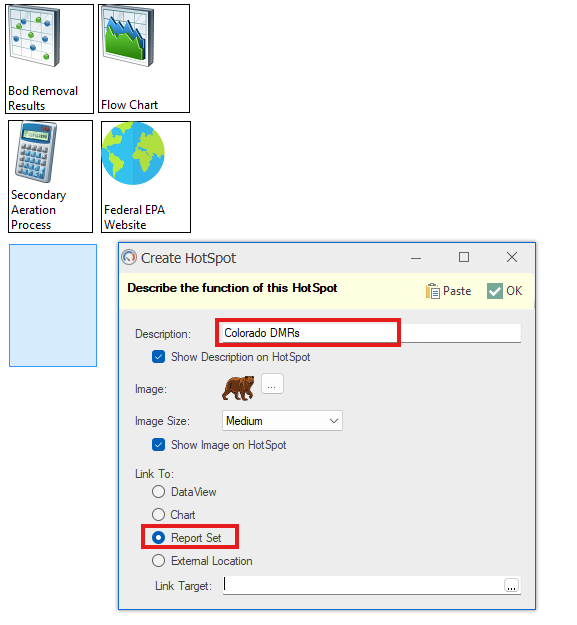
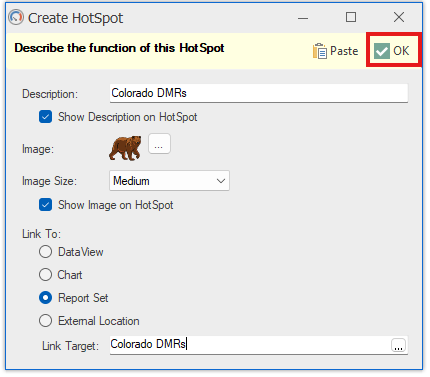
The Create Hotspot window will open. In this window, enter a clear, descriptive name in the Description field. If desired, you can also select an Image for your Hotspot from the available options and choose an appropriate image size. Select the Report Set option from the "Link To" tick list.
Lastly, click the 3 dots next to Link Target to see a list of all Report Sets. Choose the Report set we created earlier and press OK.
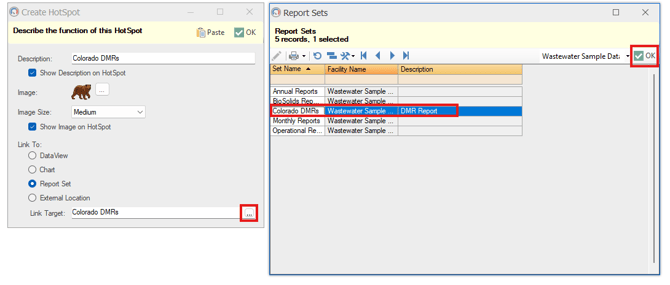
Click OK to Save your Changes:
Congratulations, you learned how to Add an LP, Set the calculations and limits, Add the report to a set, and Create a hotspot on the dashboard to run the set.