The My Work work orders tab will display all of the work orders that are active and assigned to the current user. The number of work orders in the grid will be displayed in parenthesis to make the user aware of how many are present.
Toolbar Options
The My Work toolbar has a unique set of filtering options to see the data.
• My Work: The data that displays under the My Work option is based on the user signed in and the active work that has been assigned to that user.
• My Maintenance Groups: If the My maintenance group option is checked, the data will also display all active work that is assigned to any maintenance groups the user is a part of.
• All Work: All work radio button will display all active work available, regardless of the users and maintenance groups that it is assigned to. A user has to be given the privilege of Show all Work in User Security to see this option.

My Work Grid
The My Work grid has functionality built in that other grids do not. The first four columns in the grid are static and can not be changed.
• Selection Box: The  [selection box] is used to check the records in mass that you would like to complete an action. In this section, the selection box allows the users to choose records to Print and Email. The grid can be printed, or individual work orders can be printed.
• Delinquent Icon: This delinquent indicator  [delinquent indicator] will display to note that the work is delinquent. Hover of the delinquent icon for a specific work order to see the delinquent date
• Needs Attention Icon: A yellow caution triangle will be displayed when the work order has needs attention box checked. Hover over the icon and click to read the needs attention text without having to open the work order.
• Work Order number: Is a hyperlink to view the work order in Work Order Viewer where the user can enter completion data.
Details
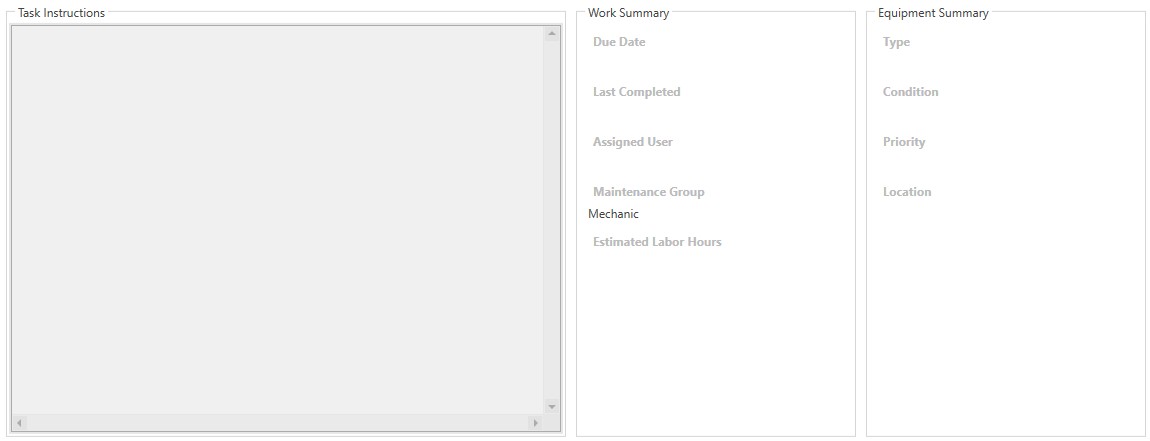
The Detail panel for Work Orders is made up of the Task instructions, Work Summary, and Equipment Summary.
• Task Instructions: The Task Instructions section contains all of the instructions for the work order individually selected in the My Work grid. The task instructions are for information purposes only and cannot be edited, changed, or deleted.
• Work Summary: The Work Summary section contains information about the selected work order. The information will update with the work order chosen in the My Work grid.
• Equipment Summary: The Equipment Summary section contains information about the piece of equipment which is used in the selected work order. The information in the Equipment Summary will update with the work order chosen in the My Work grid.