
Before we begin, please gather a few pieces of information that will be needed throughout this process.
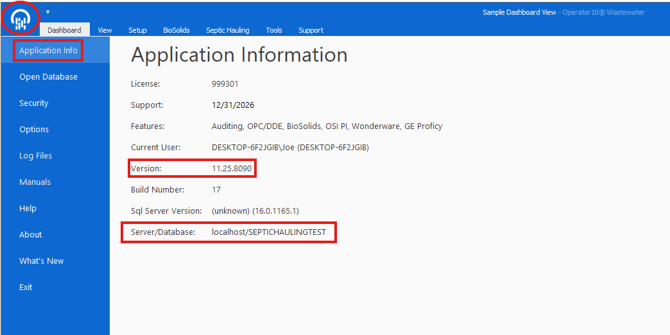
First, launch the Operator 10 application and click the File menu or the Op10 logo at the top of the application.
Notate the following:
- Application Version
- Server/Database
-
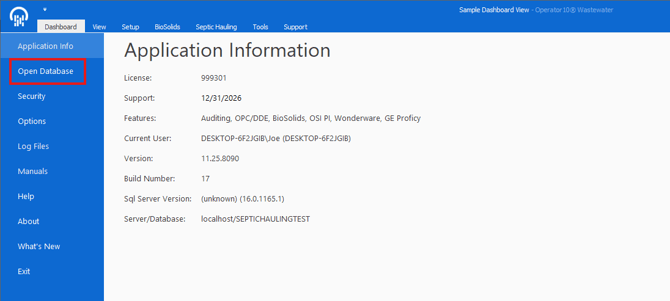
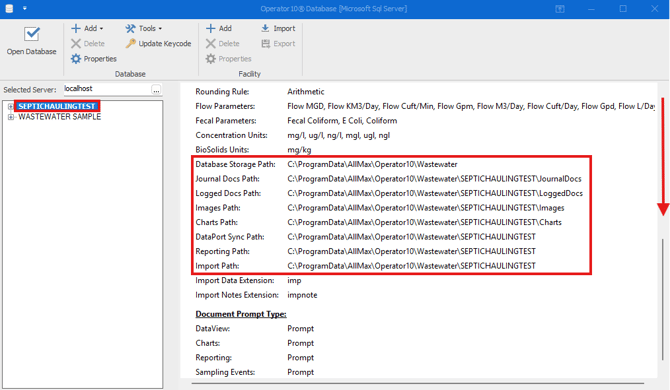
Step One: Click on Open Database in the File Menu. A window will pop up with a list of your databases. Click on a database and scroll down until you see the following:
- Database Storage Path:
- Journal Docs Path:
- Logged Docs Path:
- Images Path:
- Charts Path:
- DataPort Sync Path:
- Reporting Path:
- Import Path:
If a shared folder path is not located on the server being decommissioned, no action is required.
If a shared folder path is located on the server being decommissioned, copy the associated folders and save them in a new directory named Op10 Migration.
The Op10 Migration folder will later be moved to the new location where the file paths will reside, such as a file share server, a new SQL server, or a user workstation.
-
Step Two: After we make a copy of the File Paths we can either Create a backup of the Op10 Database or we could grab the SQL .MDF and .LDF Files for your Databases. We will walk you through both methods and you could choose which works best for you.
SQL File Transfer Method:
First I will show you the SQL File transfer method since it is the preferred method for Migrations.
Go to the SQL server. If you do not know where that is located you can source the Server/Database info we grabbed at the beginning of the KB. The hostname of the server is everything before the /.
For example:
Open up your C: Drive and navigate to Program Files. In program Files you are going to locate a file named Microsoft SQL Server as seen below:
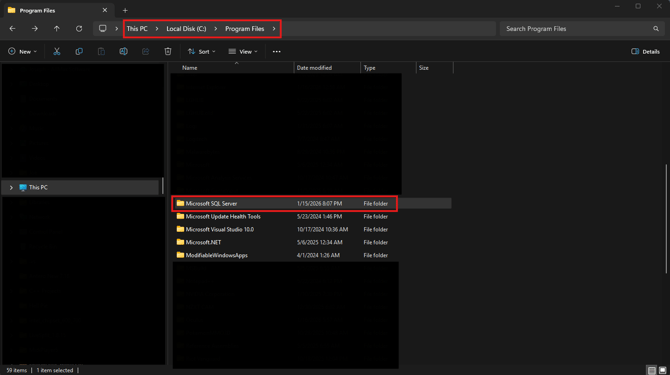
Inside the Microsoft SQL server file you will find a file that starts with MSSQL as seen below:
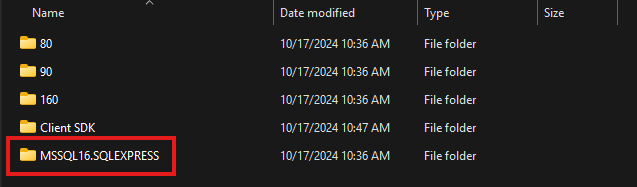
If you do not see a file with a similar namespace you may want to check your Program Files (86) path instead.
Inside the MSSQL File you want to navigate to the MSSQL > DATA Folder as seen below:
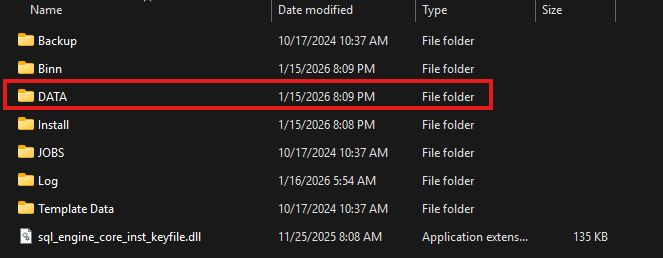
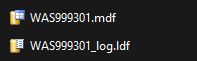
Inside the DATA folder you will see a list of all the databases in SQL. Next you will want to locate the License Database and the databases you created in Op10. The License Database will start with WAS then a string of numbers as seen below:
Once you have located both the License & Database MDF/LDF files you will want to open Services on your Server. You can do this by searching Services in your Windows Search bar. Locate the SQL server in Services, right click and click Stop. This will allow you to copy the SQL files out of the DATA Folder.
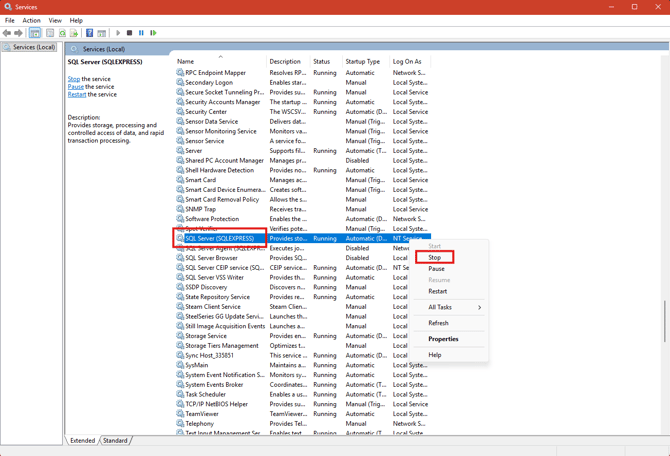
WARNING: Once you Stop the SQL Server Service the Allmax Applications will no longer work until we complete the Migration. Make sure everyone is finished with what they are doing in Op10 before stopping this service.
Now that the SQL Server Service is stopped. Copy the MDF and LDF files you located in the DATA folder and paste them into the Op10 Migration Folder we created earlier.
At this time you should have an Op10 Migration Folder with a copy of the Storage Directory paths and the SQL Databases MDF and LDF files.
Next, you can move that folder over to the new server. You can do this by using a Network Drive, Share Folder, or using a USB drive.
Before moving forward please see the following knowledge base article if you haven't installed/Configured SQL Server and SQL Server Management Studio on the new server yet:
Installing and Configuring Microsoft SQL Server 2022 Express
At the new server you will want to navigate to the DATA folder inside the SQL Folder like we did earlier
Open the DATA folder and drop the MDF and LDF files you moved over from the older server.
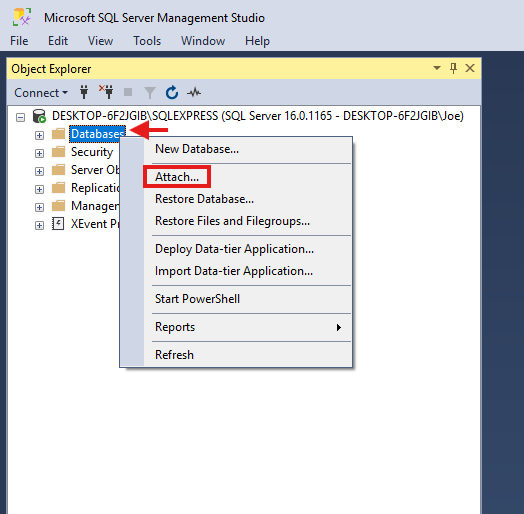
Next, You will want to open SQL Server Management Studio, right click on the databases folder, and click attach as seen below
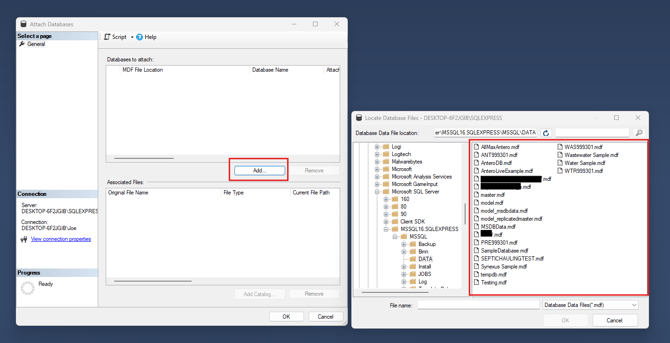
A window will pop up. Here you will click on Add which will open another window. In this window you will find the MDF files you moved over. You will select one MDF file at a time and click on OK.
After adding all of the MDF files you moved over from the older server they will show listed under the Databases to attach section.
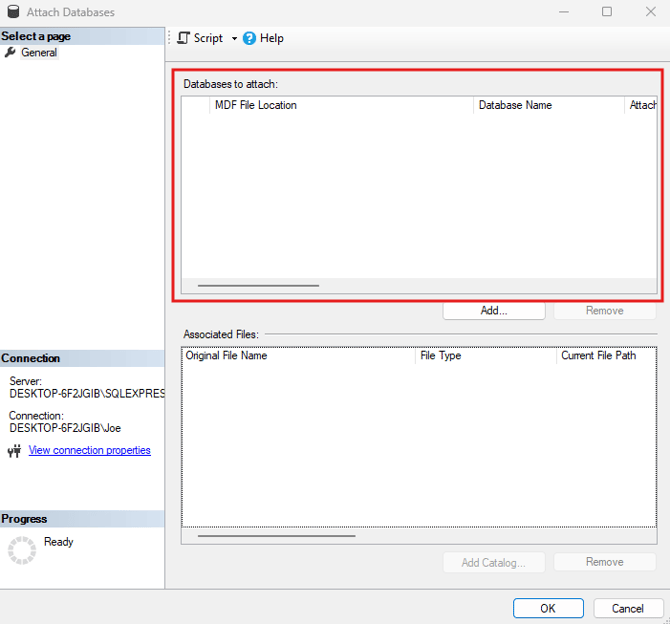
Confirm the list matches all the MDF files you moved over and select OK at the bottom.
Now if you Expand the Databases folder in SQL Server Management Studio you should see the databases you attached listed.
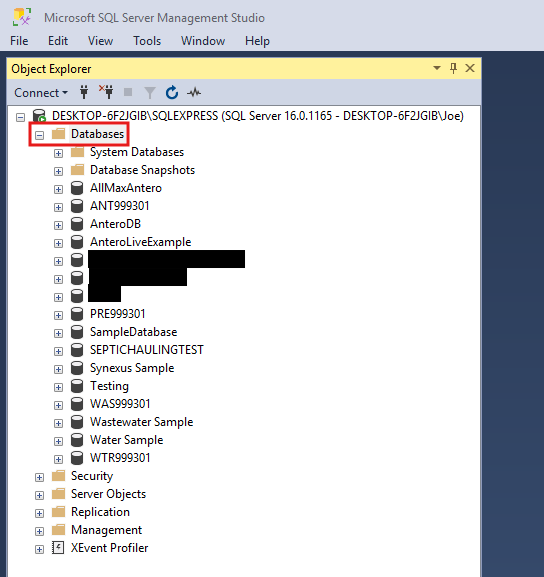
WARNING: You likely do not have any permissions set for the users to Read/Write to the databases at this time since this is a new instance of SQL. Make sure to add AD users in the Security section of SSMS, and give Read/Write permissions to the databases before moving forward. User SQL Permissions are covered in the following Knowledge Base Article if you do not know how to do this:
Installing and Configuring Microsoft SQL Server 2022 Express
Now that we have the databases attached and the User permissions are setup in SQL we can download the same version of the application you had installed at the previous Server. We took note of the version at the start of this KB. Depending on which version you had installed you can download that version from one of the following locations:
See this Knowledge Base Article if you need assistance with installing the application:
After the application is installed we will need to update the Storage Directory Paths if you had to move them off of the old server.
Let's start by choosing a new location for your Shared Folder Paths. I recommend creating a folder in the Program Data Folder in C: drive if you don't have a specified Share Folder location and naming the Folder Op10 Share.
Next you want to copy or move all of the Share Folders we put in the Migration Folder and place them into this new Op10 Share Folder you created.
Now that all of the contents of the folders are in place on the new server you can open Operator 10 and inside the File Menu you want to click on Open Database.
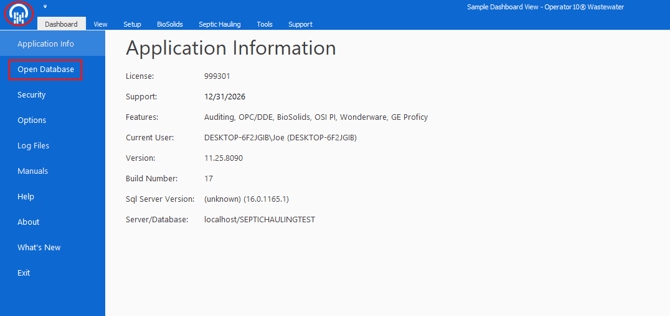
Click on your database (In my examples below I will be using the Wastewater Sample Database.)
Select Properties after your Database is highlighted.
Click on Storage Settings in the new window.
Next to the DataPort Sync, Reporting, and Import Files paths you will see 3 dots on the right side.
Click each one and navigate to your Op10 Share Folder you created. Make sure to go into the Op10 Share Folder and select the File Path that points at the current Database you are in as seen in my example below.
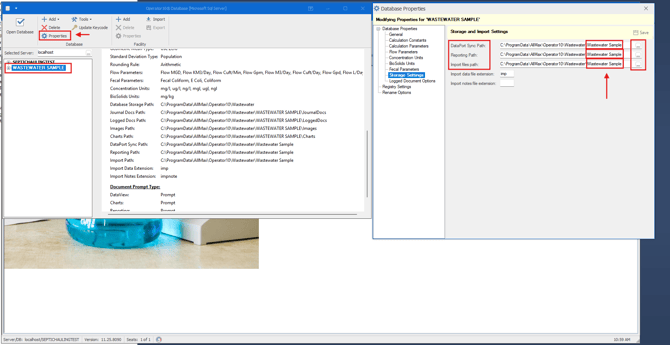
You may notice that this only updates 3 of the 8 File Paths. The other 5 paths can be updated in a SQL table which is where we will go next.
First lets navigate to your Op10 Share Folder and copy the File Path from the top of your File Explorer.

My File Path in the example above will be different then yours, don't copy my path.
Next, Open SQL Server Management Studio and Navigate to your License Database.
Expand the License Database and right click on dbo.License.
Select Edit Top 200 Rows option.
Locate the Storage Path on the right side and delete the old path and replace it with the new file path we copied.
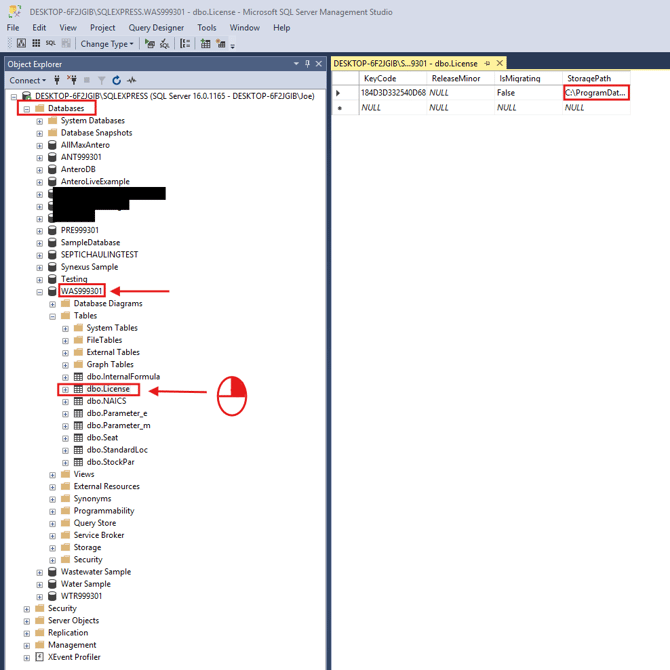
Once the Storage path was updated in this SQL table you can close out of SQL Server Management Studio.
Congratulations, you successfully migrated and configured Op10 at the new server using the Manual SQL File Transfer Method (Preferred Method.) Next we will cover how the Op10 Backup Method.
Op10 Backup Method
Open Operator10, navigate to the file menu, and click on Open Database.
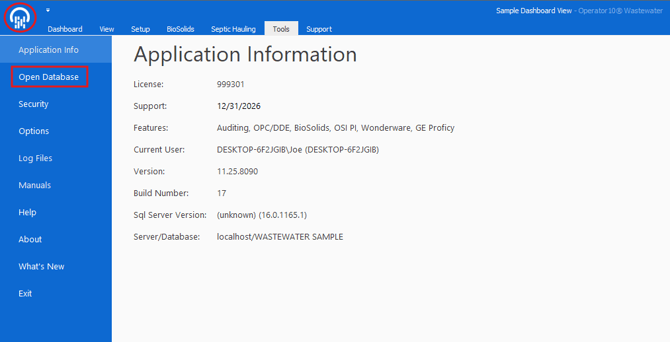
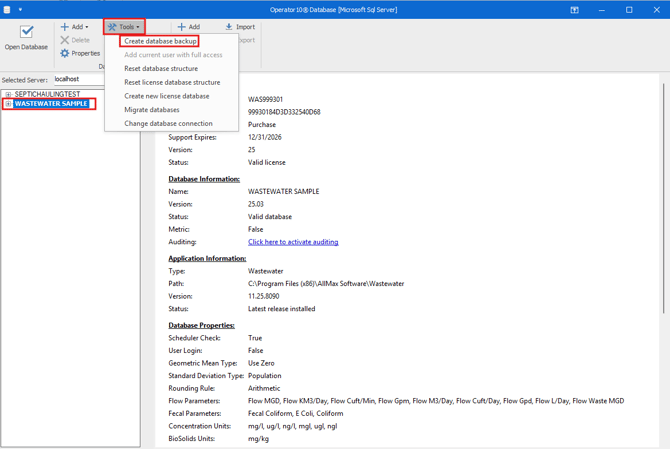
Click on the database you will be migrating over to highlight it, Select Tools at the top, and Create Database Backup.
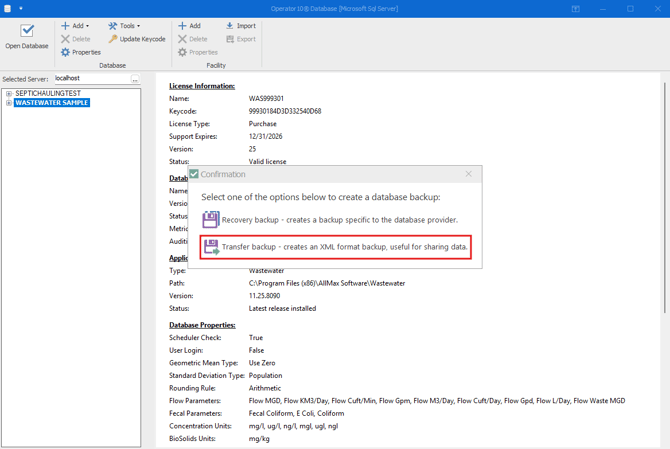
In the popup window you will select Transfer Backup to create an XML format backup.
Select the Op10 Migration folder to save the XML file to since we are going to need to move that file to the new server.
Before moving forward please see the following knowledge base article if you haven't installed/Configured SQL Server and SQL Server Management Studio on the new server yet:
Installing and Configuring Microsoft SQL Server 2022 Express
Now that we have SQL Installed and Configured at the new server, We can download the same version of the application you had installed at the previous Server. We took note of the version at the start of this KB. Depending on which version you had installed you can download that version from one of the following locations:
See this Knowledge Base Article if you need assistance with installing the application:
I recommend creating a blank or sample database at this time since we will need to access the application to restore a database from backup.
Once you can access the application you can navigate to the file menu, and click on Open Database.
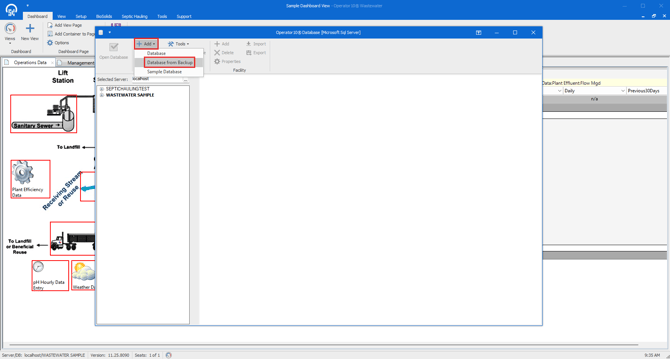
Next you want to click on Add and select Database From Backup.
Navigate to the XML Backup we created and moved over in the Op10 Migration Folder.
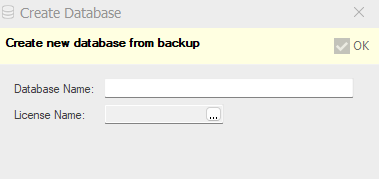
You will be prompted to create a new Database name and select your license database from the drop down list for License Name.
Please Note: If you choose to use this method this Database would carry over in app permissions from the old database but the users will need to be given SQL permissions to Read/Write to the new database in SQL. Make sure to add AD users in the Security section of SSMS, and give Read/Write permissions to the new databases. User SQL Permissions are covered in the following Knowledge Base Article if you do not know how to do this:
Installing and Configuring Microsoft SQL Server 2022 Express
At this time we will need to update the Storage Directory Paths if you had to move them off of the old server.
Let's start by choosing a new location for your Shared Folder Paths. I recommend creating a folder in the Program Data Folder in C: drive if you don't have a specified Share Folder location and naming the Folder Op10 Share.
Next you want to copy or move all of the Share Folders we put in the Migration Folder and place them into this new Op10 Share Folder you created.
Now that all of the contents of the folders are in place on the new server you can open Operator 10 and inside the File Menu you want to click on Open Database.
Click on your database (In my examples below I will be using the Wastewater Sample Database.)
Select Properties after your Database is highlighted.
Click on Storage Settings in the new window.
Next to the DataPort Sync, Reporting, and Import Files paths you will see 3 dots on the right side.
Click each one and navigate to your Op10 Share Folder you created. Make sure to go into the Op10 Share Folder and select the File Path that points at the current Database you are in as seen in my example below.
You may notice that this only updates 3 of the 8 File Paths. The other 5 paths can be updated in a SQL table which is where we will go next.
First lets navigate to your Op10 Share Folder and copy the File Path from the top of your File Explorer.
My File Path in the example above will be different then yours, don't copy my path.
Next, Open SQL Server Management Studio and Navigate to your License Database.
Expand the License Database and right click on dbo.License.
Select Edit Top 200 Rows option.
Locate the Storage Path on the right side and delete the old path and replace it with the new file path we copied.
Once the Storage path was updated in this SQL table you can close out of SQL Server Management Studio.
Congratulations, you successfully migrated and configured Op10 at the new server using the Op10 Backup Method.