
Press "File" or the application icon (on version 11.25.8090 or newer)
Press "Security"
You will then see the "User Security" Window as shown below.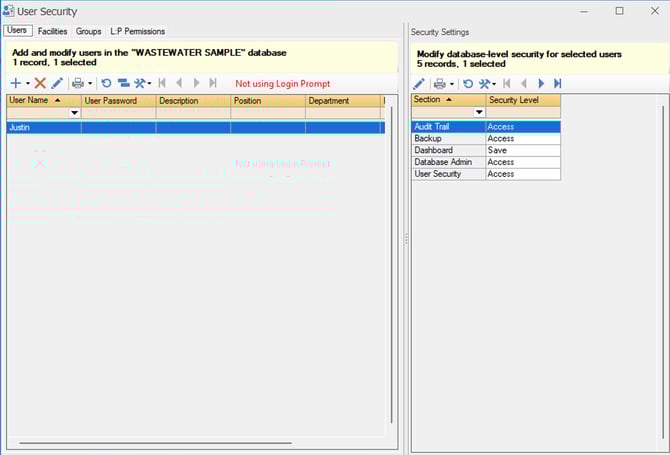
The default selected tab will be "Users"
Press the + icon to add a new user or the ▼ icon to "Add a similar user"
The only required field is "Username" Which has to match the users domain name.
On the right panel you will see various sections, and security levels as shown below.
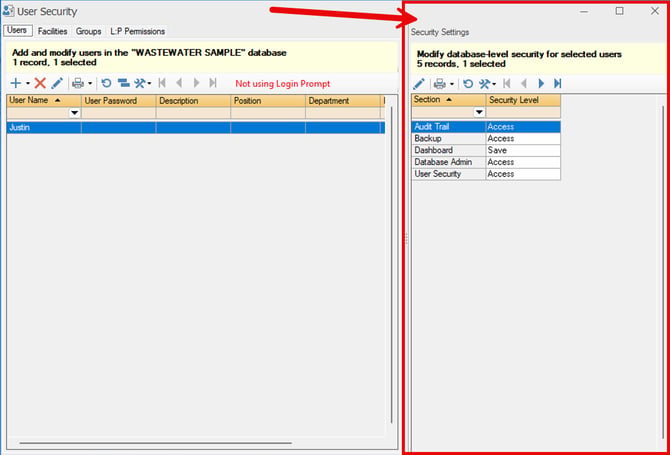
Select the desired Access levels for each user AFTER you have highlighted that user.
After the user is added here, you will need to open the "Facilities" tab to give a user permissions for individual facilities, as shown below.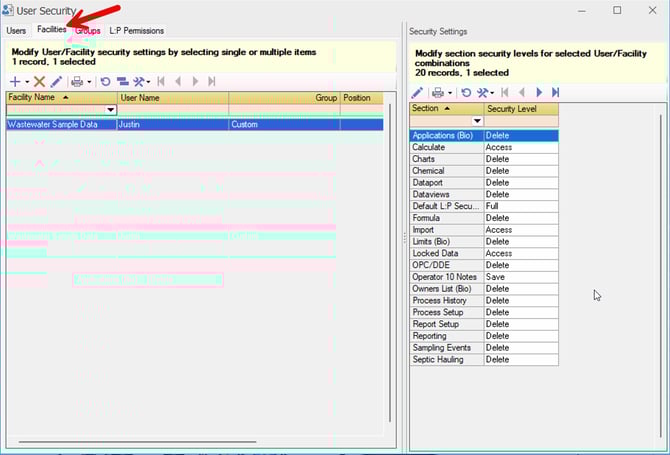
Press the + icon to add a new user or the ▼ icon to "Add a similar user"
You will then be prompted with the follow "User Security" dialog window.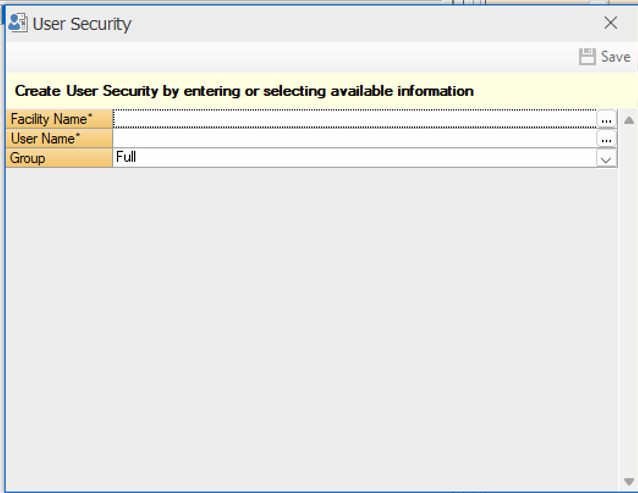
Press the "..." button next to "Facility Name" and "User Name" to select the proper Facility, and User, then press the "Save" Button.
You can then adjust individual user permissions on the right panel as shown below.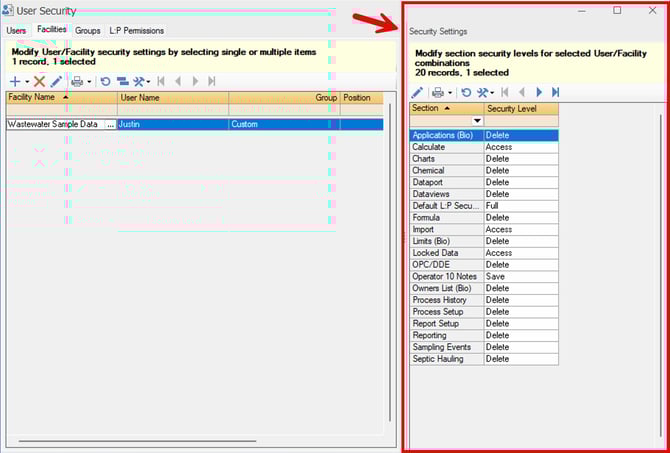
You also have the ability to create "Groups" which can be found on the top panel as shown below.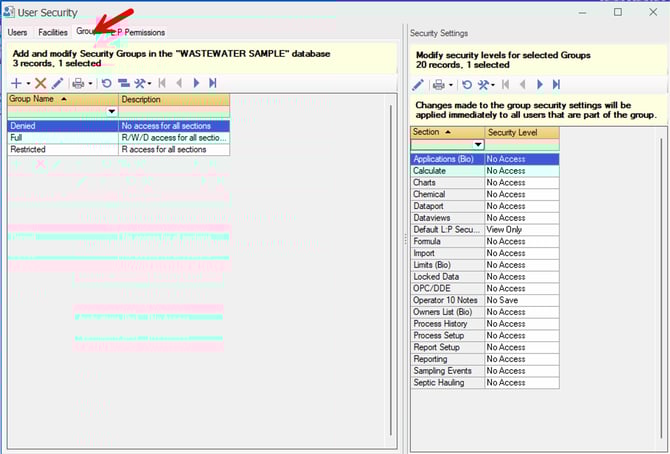
If you wish to make "Groups" instead of defining a users permissions individually you can do that here. These permissions can then be assigned to a user on the "Facilities" tab using the dropdown, as shown below.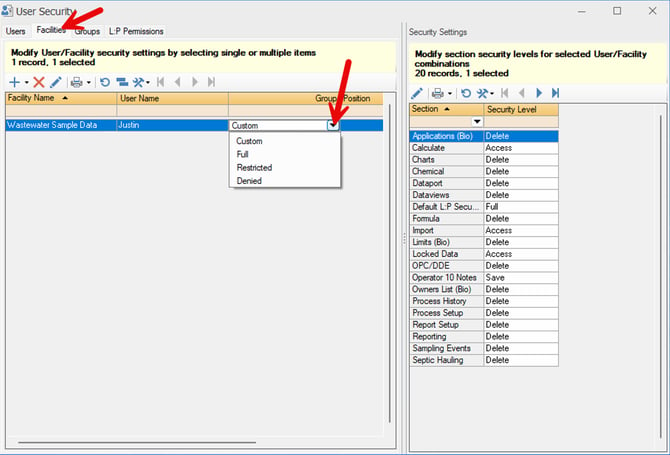
Please note, the user will also need permissions within SQL, instructions for setting that up can be found here.