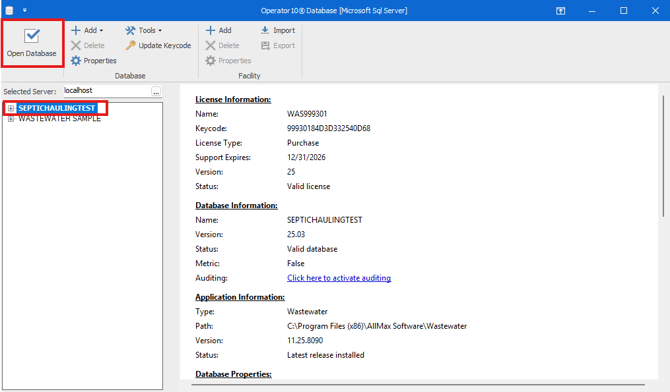
Before you begin, verify that you have the required permissions to install software on the PC.
Identify the version of the application installed on the previous workstation, as the same version must be installed on the new PC.
Installing an older version will prevent access to the existing database.
Installing a newer version will prompt a database upgrade, which requires that the updated version be installed on all other existing workstations.
If you need to locate which version of the application you currently have installed you can do that by opening the application and clicking either the file button or the logo at the top left of the application. Under Application Info you can see the Version as seen below: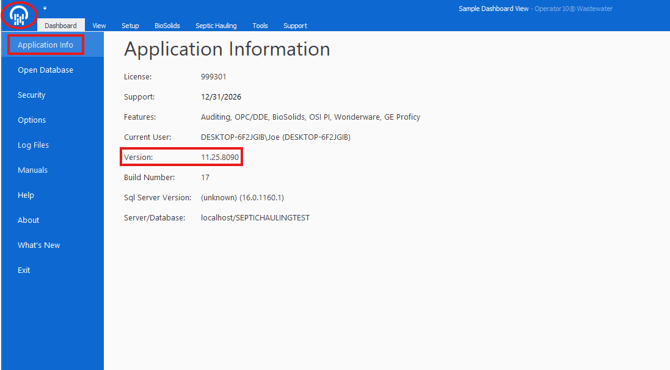
-
Once you specified which version of the application you need installed you can visit either the latest downloads page or the previous downloads page to download the same version.
Latest Downloads
Previous Downloads - Run the installer for the correct version. The installer will check for the presence of the Microsoft .NET Framework If it is not found, you will be prompted to install it. Complete the installation of .NET Framework and return to the Operator10 setup window.
- Click the button labeled Next.
- Read the End User License Agreement. If you agree, select the radio button labeled "I accept the agreement", and then click the button labeled Next.
- Choose where the Operator10 Water application files will reside. It is recommended to use the default installation path.
The path specified in step 5 is only for the Operator10 application files, no database files will be stored at that path.
Continue to follow the installation prompts. Once finished, choose whether or not to launch the application by checking or unchecking the checkbox labeled "Launch Operator10".
-
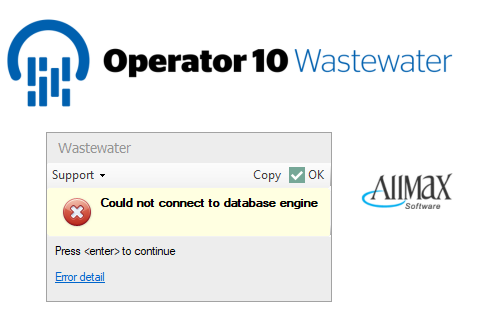
You may receive the following error when the application is launched for the first time at a new PC:
-
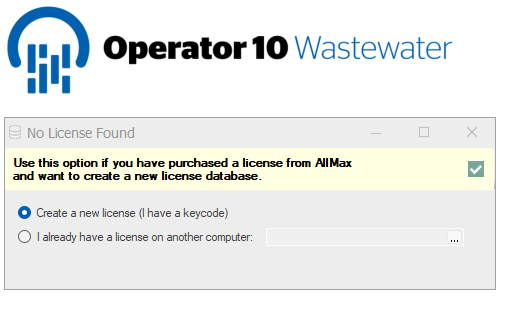
Press OK and you will then be prompted to select between the following two options:
-
Here you will select that you already have a license on another computer and you will specify where the SQL server is located by either typing in the Server Hostname or by clicking the 3 dots and choosing the server from the dropdown list:
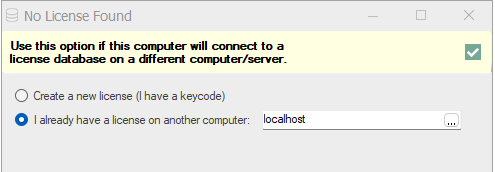
In my example above I selected locahost because my SQL instance is on the same server I installed the application. If you are unsure where your SQL instance is located you can go back to the old PC and launch Operator 10. Press the File button or the Logo in the top left of the application and under Application Info you will find the Server/Database as seen in the image below: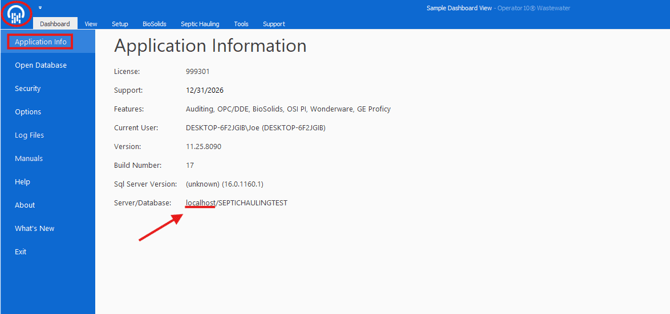
Everything before the Slash is the Hostname for the Server where the SQL instance is located.
Everything after the Slash is the name of the database you currently have open.
- After you selected or typed out the SQL server hostname, you can press the green check mark on the top right.
- You will then be prompted to select the Database you would like to open. Simply click on which database you would like to open and click on Open Database as seen below: