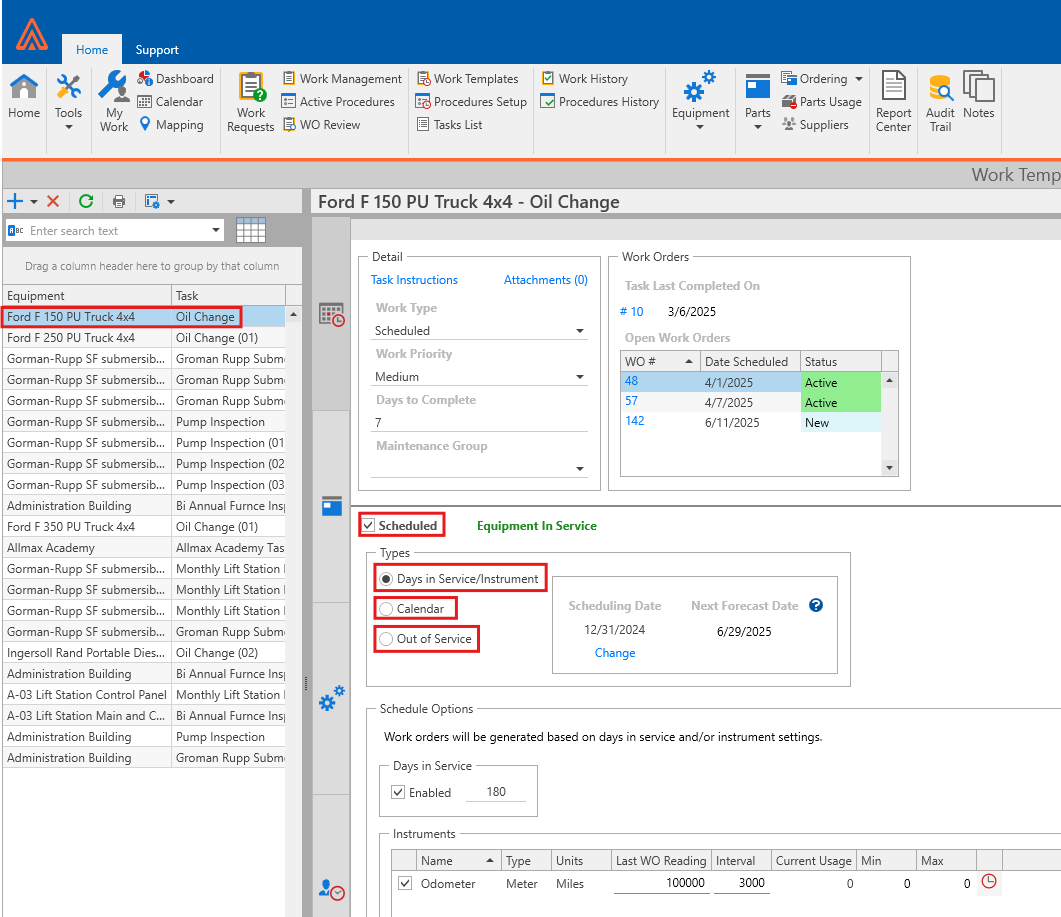
Main Differences Between the Two Versions
In legacy versions of Antero, the Template Builder allowed users to add multiple pieces of Equipment and multiple Tasks to a single template, and then schedule the entire list using the Schedule/Create options. While this approach made it faster to schedule a large number of tasks, it also increased the risk of losing visibility into where Work Orders were being scheduled from, especially in environments with a large number of templates.
In Antero 7, this approach has been simplified. Templates are now designed to represent a single Work Order, consisting of one piece of Equipment and one Task, which is scheduled independently. While this may require more individual scheduling upfront, it provides greater clarity and control, making it easier to track where Work Orders originate once they are configured.
Next, I will walk through the process of creating and scheduling a Work Order in both versions of the application, starting with the Legacy version.
Creating/Scheduling Work Orders - Legacy
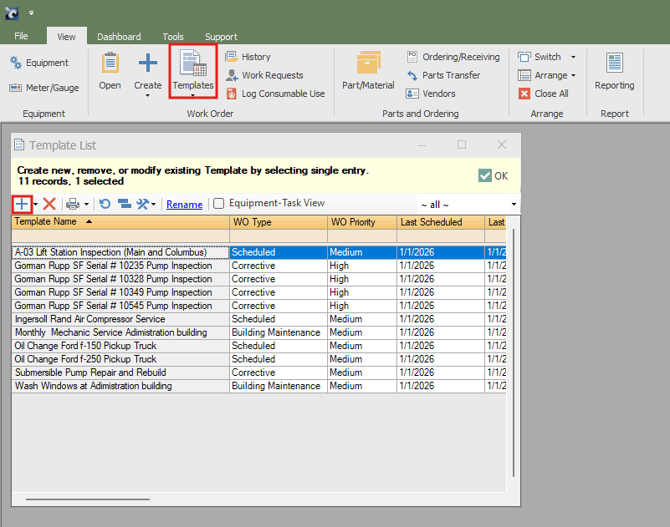
First, select Templates at the top of the application to view any previously created templates. Next, click the + icon to open the Template Builder and create a new template.
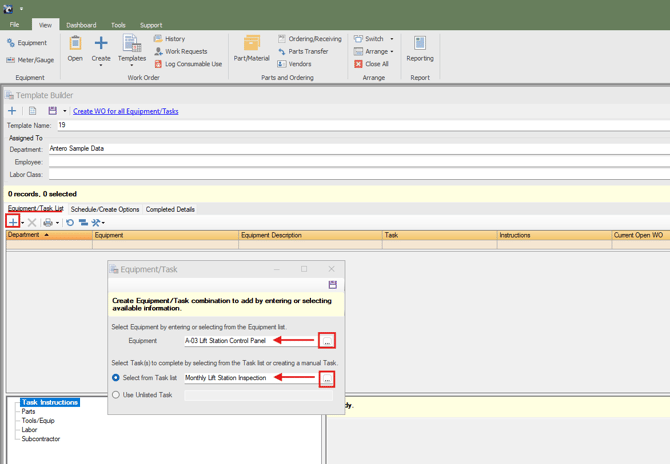
When the Template Builder opens, click the + icon under the Equipment/Task list. Select the three-dot menu next to Equipment to choose from the available equipment options, then repeat the process for the Task list.
To add multiple pieces of equipment or tasks, hold CTRL while selecting each item, then click OK to insert them all at once.
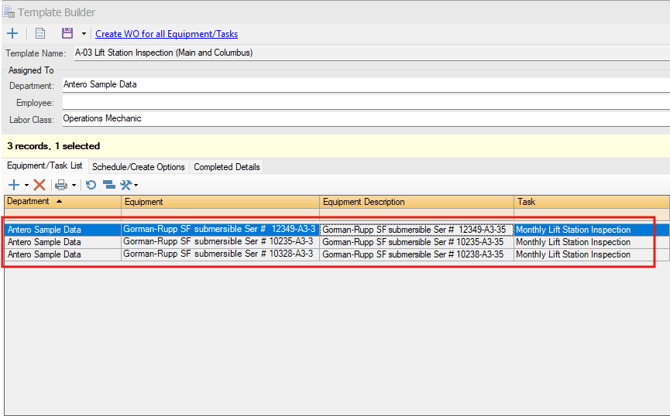
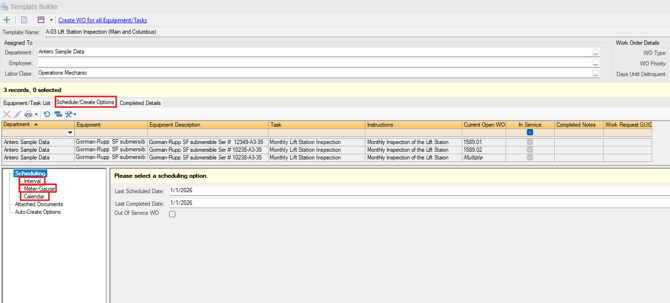
All of the Equipment and Tasks will then show listed inside of that one Template you created as seen below:
Finally, select the Schedule/Create Options tab to schedule the list of Equipment and Tasks.
-
Interval Scheduling allows you to schedule work orders based on a defined interval in days, months, or years.
-
Meter/Gauge Scheduling allows you to schedule work orders based on meter or gauge readings (instrument readings).
-
Calendar Scheduling allows you to schedule work orders based on specific days of the week or defined calendar dates.
Creating/Scheduling Work Orders - Antero 7
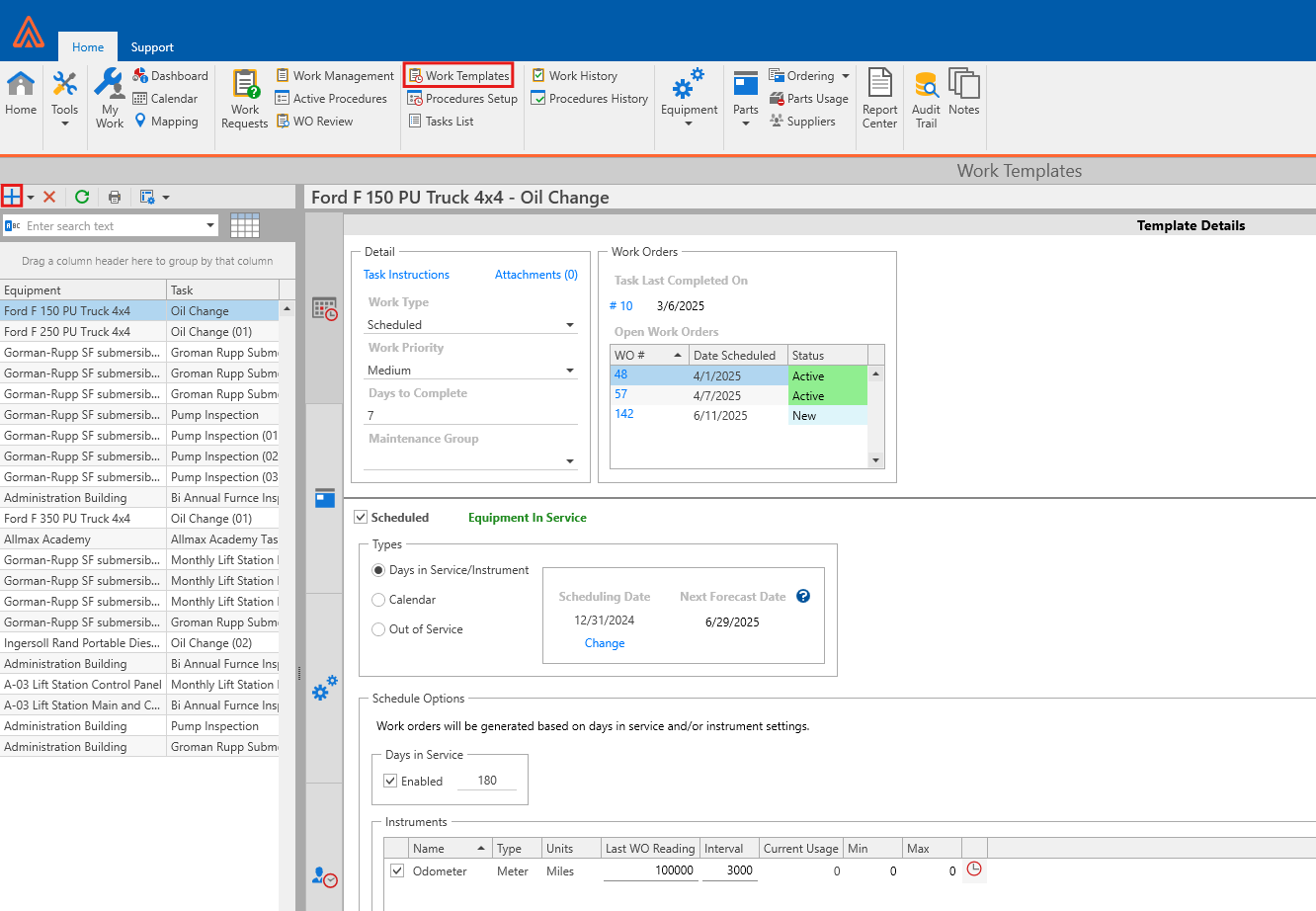
First, select Work Templates at the top of the application to view any previously created templates. Next, click the + icon to create a new Template.
An Add Work Template window will appear. Here you will select a piece of Equipment and Task from a drop down list.
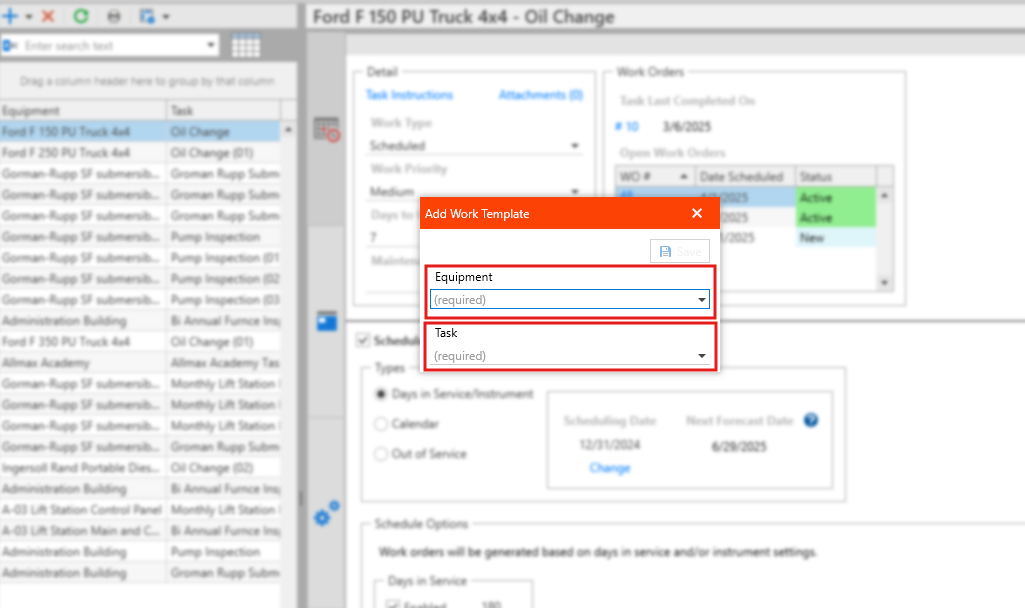
After selecting both items, click Save. The template will then appear in the list of templates on the left. Next, select the Work Template you would like to schedule.
Enable the Scheduled checkbox, and then choose one of the following scheduling options:
-
Days in Service / Instrument Scheduling allows you to schedule work orders based on a defined interval in days. This option also supports scheduling based on instrument readings.
-
Calendar Scheduling allows you to schedule work orders based on specific days of the week or defined calendar dates.
-
Out of Service allows you to schedule a work order when the equipment remains out of service for a defined period of time.