Detail Panel
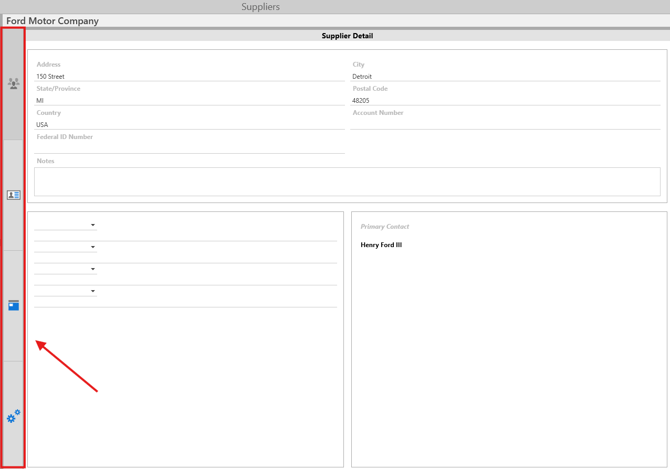
In the Detail Panel pane of Suppliers, users are able to see and edit information related to the selected supplier. For any fields present in the detail section, users can enter or edit information directly by typing into the field(s) or by clicking the down-arrow to select data from the available list.
The Suppliers Details Panel has individual tabs to enter and keep track of suppliers Details, Contacts, Parts, and Equipment.
The Suppliers Details Panel information will update with the equipment selected in the Suppliers Grid.
Supplier Details
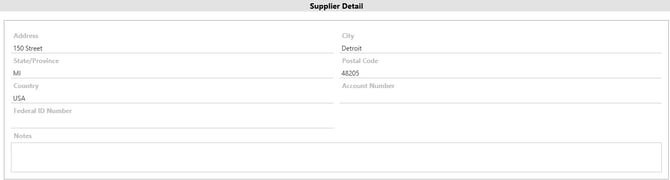
In the Supplier Details section of Suppliers, users will be able to see and edit information related to the selected supplier. For any fields present in the detail section, users can enter or edit information directly by typing into the field(s) or by clicking the down-arrow to select data from the available list. The Primary Contact is selected on the Contacts tab.
Contact Information:
Enter contact information by selecting one of the default options in the drop-down, or an option directly in the field that may not be available in the list. The available contact options are Phone, Fax, Ext, Cell Phone, Pager, E-mail, or Website.
Web Address  - Enter a valid web address to get a hyperlink in the field that will open up the address in the default browser.
Email Address  - Valid email addresses will be recognized with an envelope icon. Click on the icon to open up the email address in the users default email client.
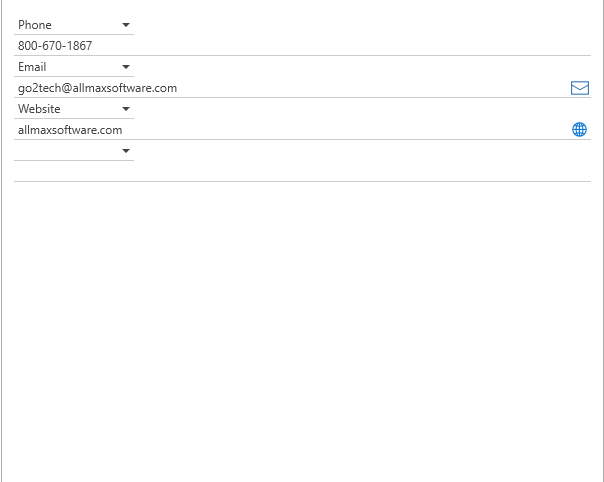
Example of contacts with Hyperlink icons
Primary Contact Box:
The Primary contact is selected in the contacted tab to note the point of contact at the Supplier. The info displayed in the box is pulling all of the data about the primary contact from the Contacts tab.
Note: Email and Website icons are displayed in the Primary Contact window.
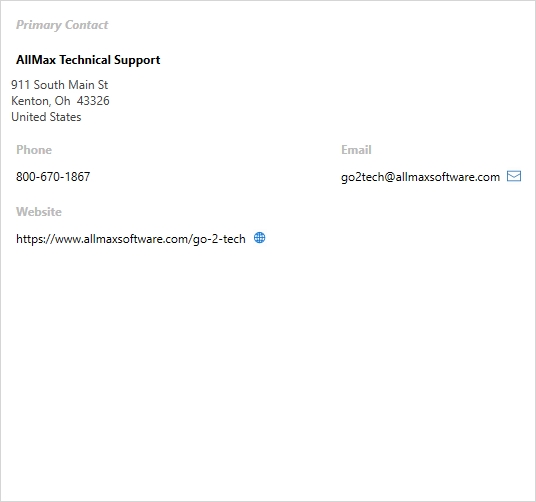
Example of Primary Contact Info
Suppliers - Contacts
Individual contacts can be created for all Suppliers. Contacts can be used to store additional information related to the third party. Information about a contact is similar to the information stored for a Supplier. Contacts related to the Supplier could be different employees or individuals that work for or with the Supplier.
Unlimited contacts can be added to the supplier to track all individuals who represent the supplier in various ways.
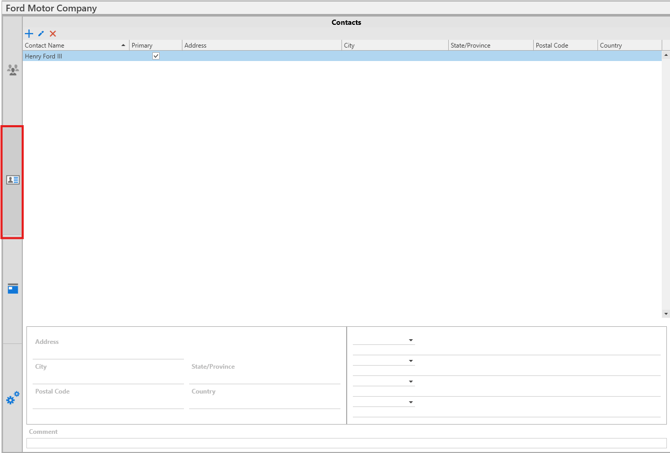
Adding a Contact
Users can add unlimited contacts to a supplier. Follow the steps below to make this association between contacts and suppliers.
1. Click the  [add] in the toolbar to begin the process.
2. In the Add Contact window, type the Contacts name in the field under the Name heading.
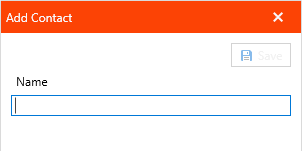
3. Click the  button to confirm the selection.
4. The newly created Contact name will be added to the Contact grid.
Editing a Contact
To edit a supplier contact, follow the steps below:
1. Select the Contact Name needing to be edited in the Contact grid on the Contact tab.
2. In the Contacts panel, click the  [edit] in the toolbar.
3. The Edit Contact window will open in front of Antero.
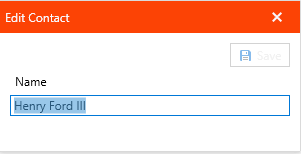
4. Make a unique change to Contacts name and then the Save button to save the changes to the Contact.
5. The newly edited supplier Contact will now be in the Contact grid on the Contacts panel.
Deleting a Contact
To delete a contact associated with a supplier, follow the steps below:
1. Select the Contact Name needing to be deleted in the supplier Contact grid on the Contact tab.
2. In the Contacts panel, click  [Delete] in the toolbar.
3. A Confirm Deletion window with a prompt will appear, click the green Yes or red No button to confirm the deletion of the selected Instrument.
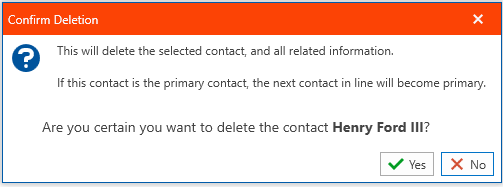
4. The newly deleted Contact will no longer be accessible from inside of Antero.
Suppliers - Parts
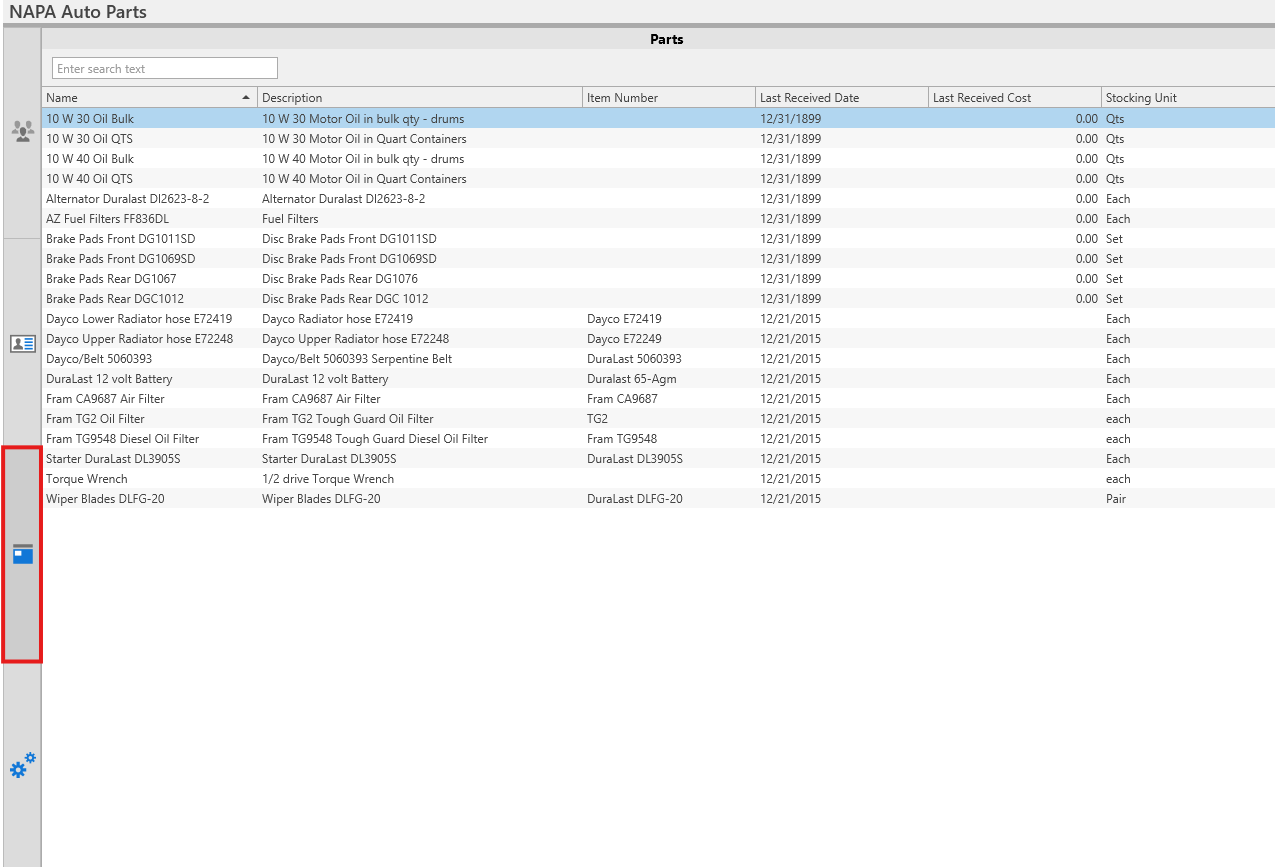
On the Parts tab of the Suppliers section, all Parts associated with the selected supplier will be displayed. No additional data entry is required as the information presented is strictly based on data coming from the Parts section of Antero.
Data shown here will be based on the assigned Supplier in a fixed grid. The data can be searched in the search box and all of the columns can be sorted.
Suppliers - Equipment
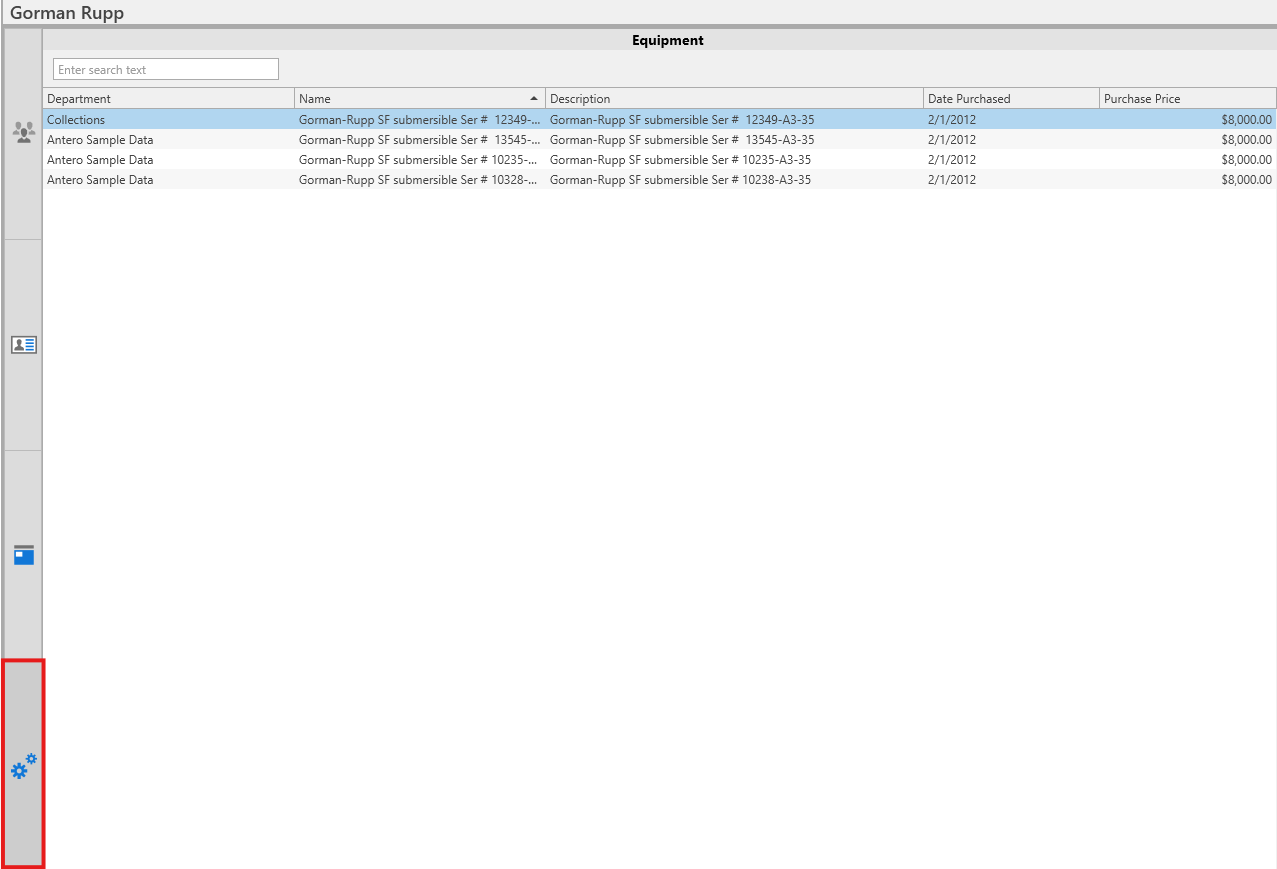
On the Equipment tab of the Suppliers section, all Equipment associated with the selected supplier will be displayed. No additional data entry is required as the information presented is strictly based on data coming from the Equipment section of Antero.
Data shown here will be based on the assigned Supplier. Users can make use of standard grid functionality to order and print records if desired.