Creating a New Task
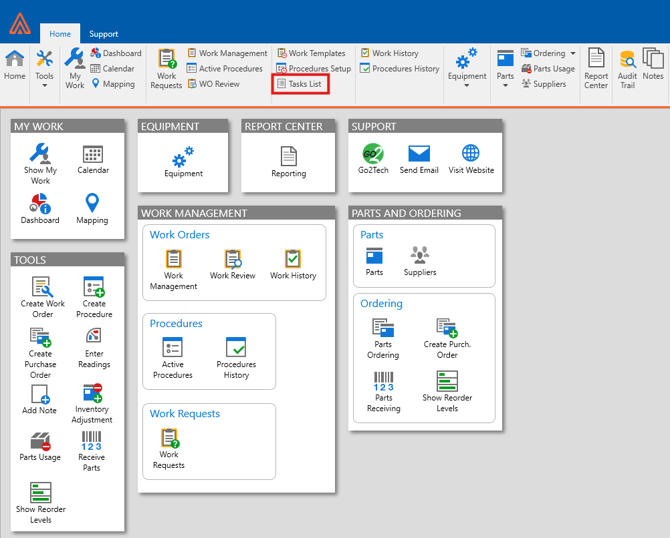
First start by locating and clicking on the Tasks List at the top of the application.
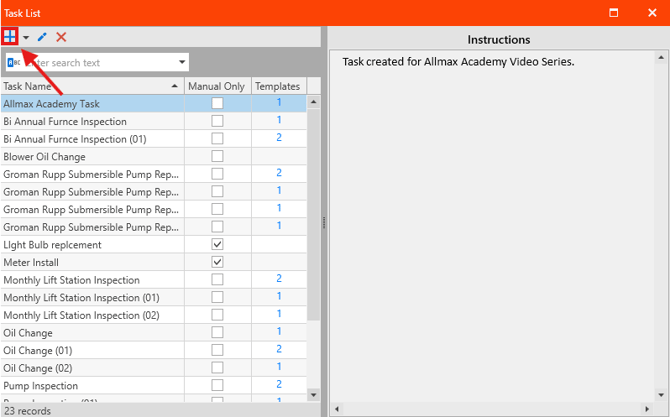
After the Task List window opens click on the + icon.
Type the Name of your task in the Name Field.
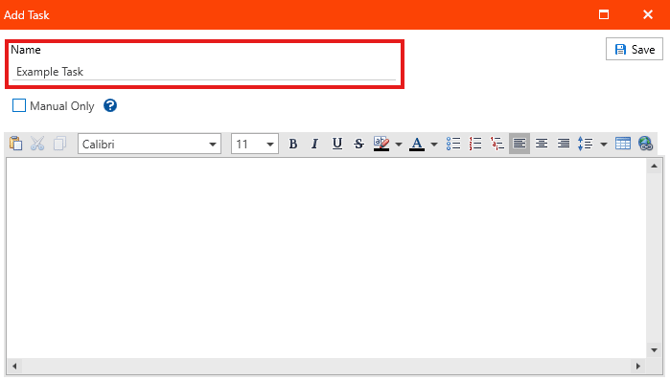
Optionally, click the tick box for Manual Only if you would like this task to be available to all Equipment only when creating a manual work order.
Warning: Manual Only tasks cannot be used to Create Work Templates
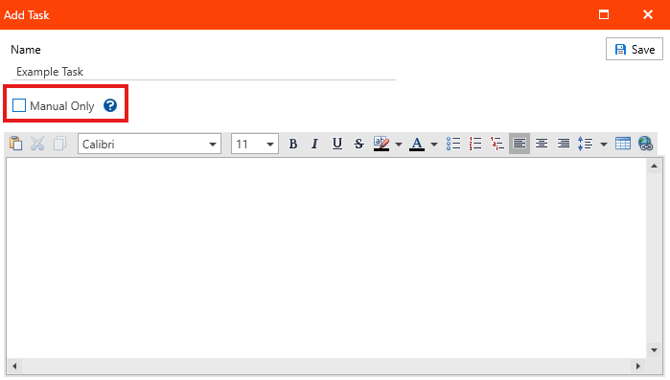
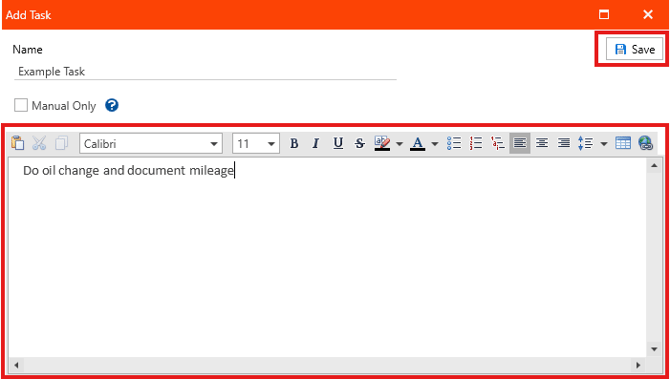
Lastly, add instructions in the field at the bottom of the window and click Save.
Editing an Existing Task
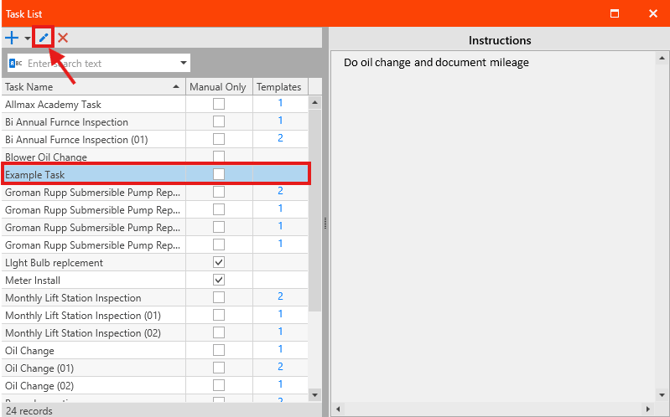
Select your task by clicking on it, then click the pencil icon at the top of the window.
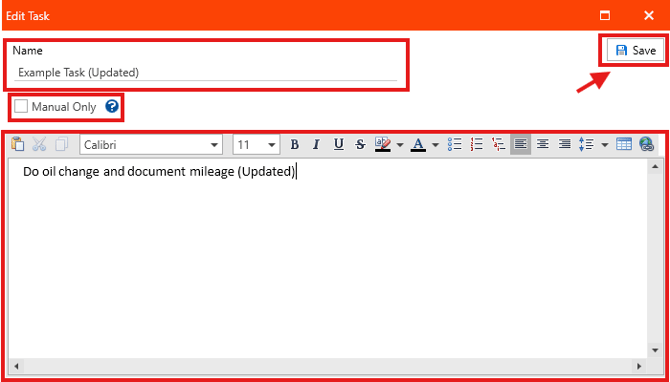
Edit any of the existing fields, and/or toggle Manual Only if needed then click Save.
Deleting an Existing Task
Select your task by clicking on it, then click the X icon at the top of the window.
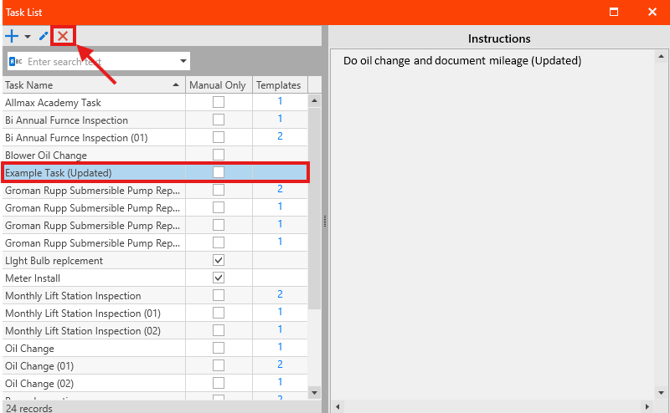
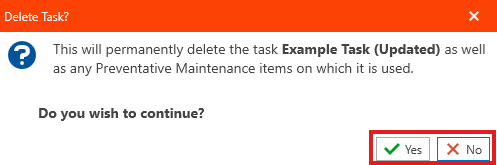
Caution: You will be Prompted with a window warning you that deleting the task will also delete any Preventative Maintenance items on which it is used.
If you wish to continue with Deleting the task, Select Yes. Otherwise, Select No.