Locating the Work Requester Application
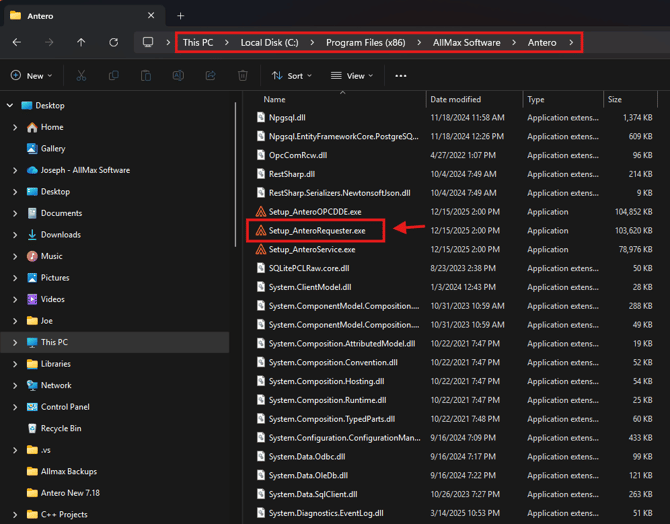
Start by going to a computer with the Antero Application installed. Locate the file path for Antero, which is usually located at C:\Program Files (x86)\AllMax Software\Antero unless chosen otherwise at install.
Note: If you had used Antero 6 in the past and have since updated to Antero 7 it is not unusual to have an Antero folder and/or and Antero7 folder in the Allmax Software folder. If this is the case you will choose the Antero7 folder instead.
Inside the Antero or Antero7 folder you want to locate the Setup_AnteroRequester.exe and run this exe.
Follow the Installation prompts and launch the application at the end.
The Work Requester is used to Request Work Orders to be created for certain tasks. The Antero users will then see this request inside of the Antero Application and they can create work orders as needed.
For this reason you may want to install Antero Requester for someone who isn't using the Antero application, but need work orders created. In this case you can take this Setup_AnteroRequester.exe and move it to any computer that needs the Requester application but not the full Antero Application.
If you are installing this on a different computer the user of that computer will need to point the Work Requester Application at the SQL Server, which means this user will need to have SQL Permissions setup to use the application. The computer will also need to communicate with the SQL server over port 1433.
Managing Work Requests
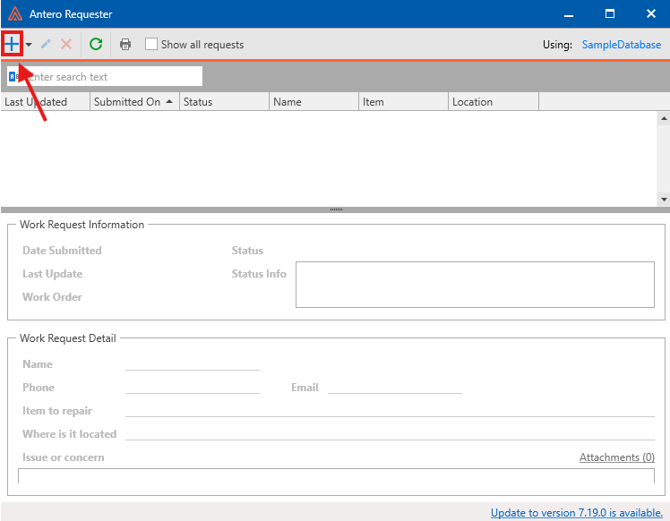
Inside the Antero Requester application you can create a new Work Request by clicking the + icon in the top left of the application.
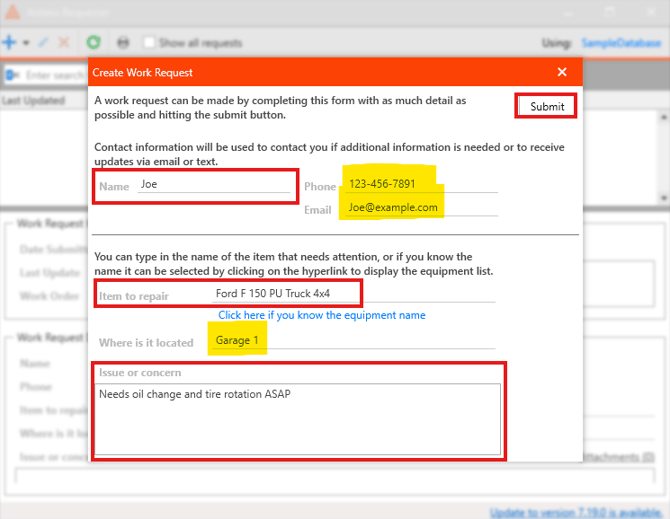
At this time a Create Work Request window will pop up. In this window you will fill out your Name so the Antero Users know who submitted the work request.
The Phone and Email fields are optional.
Then you will either type the piece of Equipment that needs work in the "Item to Repair" field or alternatively you can click the hyperlink below the field to choose from the existing pieces of Equipment.
Optionally, you can type where this Equipment is located in the "Where is it located" field.
Lastly, You specify the issue or concern with this Equipment inside the box at the bottom and click Submit.
Example (Red Boxes Mandatory - Yellow Highlights Optional):
After a Work Request is submitted you can see a list of all your submitted Work Requests and their status. If you don't see all of your Work Requests you can click the Show all requests tick box at the top of the application.
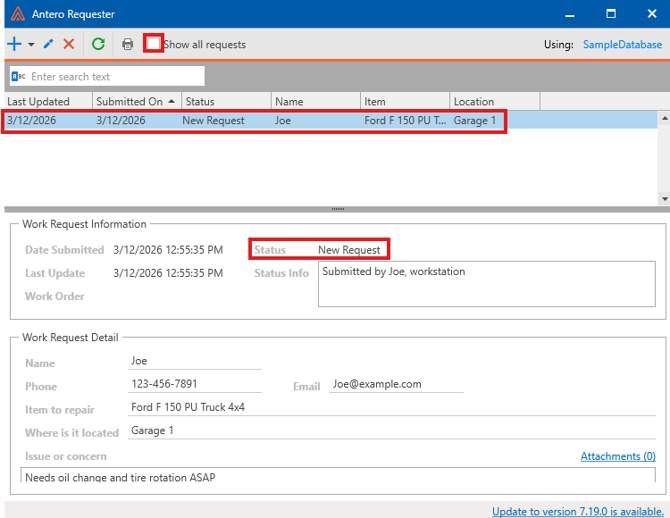
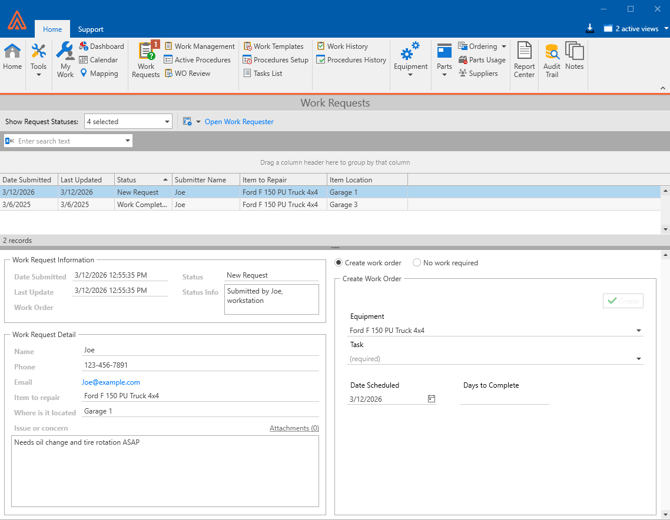
When a work request is submitted the Antero Users will receive a notification at the top of their Antero Application with a number specifying how many New Work Requests they recieved.
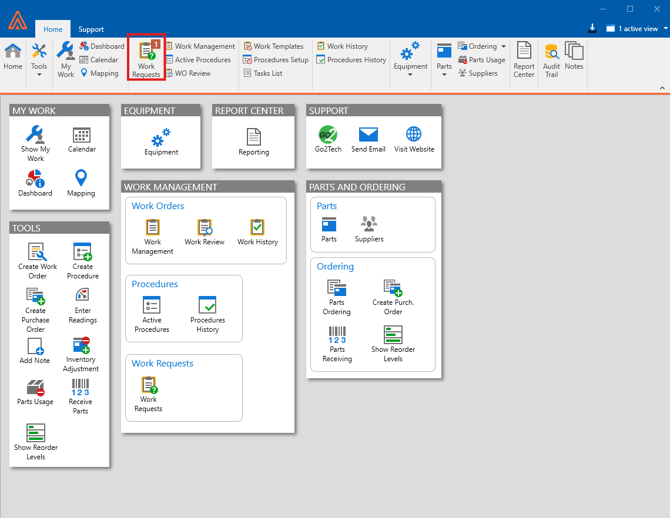
When an Antero User opens the Work Requests tab they will see a list of all Work Requests. Here they will be able to create a work order based on the details of the request. This can be done right here in the Work Requests section as a one off work order or they will schedule reoccurring work orders in the Work Templates tab as usual.